1. Install NotchMemo
- Check your Mac: NotchMemo needs macOS 14 Sonoma or later. It works on any Mac, notch or not.
- Open the downloaded file and drag NotchMemo into your Applications folder.
- Open NotchMemo from Applications. It appears under the notch (or at the top centre of the screen on Macs without one).
NotchMemo starts with your Mac and stays out of the way. There’s no account to create.
2. Allow permissions
NotchMemo asks for each permission once, and explains it in the app. Its Permissions page shows what’s allowed at any time. You can also change them in System Settings › Privacy & Security.
- Accessibility: the hold-to-talk key, double-tap ⌘V, auto-paste, typing dictation and notification history.
- Microphone and Speech Recognition: hold-to-talk and the teleprompter, only while you use them.
- Files and Folders (your screenshots folder): catching every screenshot for the Shelf.
- Contacts (optional): finding the person in “message Rahul…”.
- Automation (optional): closing or reusing browser tabs, like “close the Gmail tab”.
Speech is recognised on your Mac by Apple, so your voice is never sent anywhere.
3. Pick your talk key
Hold the key, speak, then let go. By default it’s fn (Globe). You can switch to Right Command, Right Option or Control, and choose how long to hold it, from half a second to 3 seconds. Pressing any other key during the hold cancels it, so your shortcuts keep working.
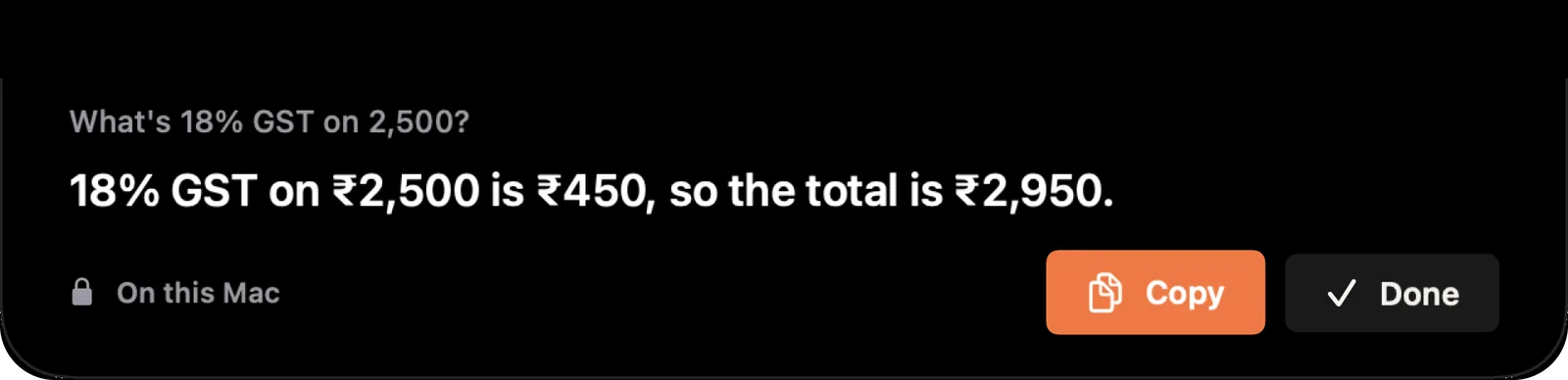
Try it now:
- Ask: “How long have I worked today?” or “Timer for 25 minutes”.
- Act: “Open Spotify” or “Message Rahul on WhatsApp saying I’ll be 10 minutes late”. Drafts always wait for you to press Send.
- Dictate: put your cursor in any text box, hold the key and talk. Say “scratch that” to delete the last sentence.
4. Meet Memo
Memo is the tiny friend under your notch. She waves hello every hour and reacts to your day. Pick how often you see her: all day, only when there’s news, or off.
5. Connect your own AI (optional)
Out of the box, NotchMemo answers quick questions on your Mac and uses Apple Intelligence where it’s available. Apple Intelligence answers need an Apple silicon Mac on macOS 26 with Apple Intelligence turned on. Everything else works without it.
For open questions, connect Claude, ChatGPT, Gemini, Sarvam AI, OpenRouter, or a local model such as Ollama or LM Studio. Paste your API key once and press Test. Your key stays on your Mac, and only your question is sent to the service you chose. Dictation is never sent.
6. Make screenshots instant
Every screenshot (⌘⇧4) lands in your notch, already copied, and stays on the Shelf to drag anywhere. Turn on instant mode to skip macOS’s floating preview, so screenshots arrive right away.
7. Make it yours
Click Open NotchMemo for the full app: your dashboard, scripts and settings. Pick one of five themes (Graphite, Midnight, Slate, Cream, Gray) and six accent colours. The notch follows your accent.
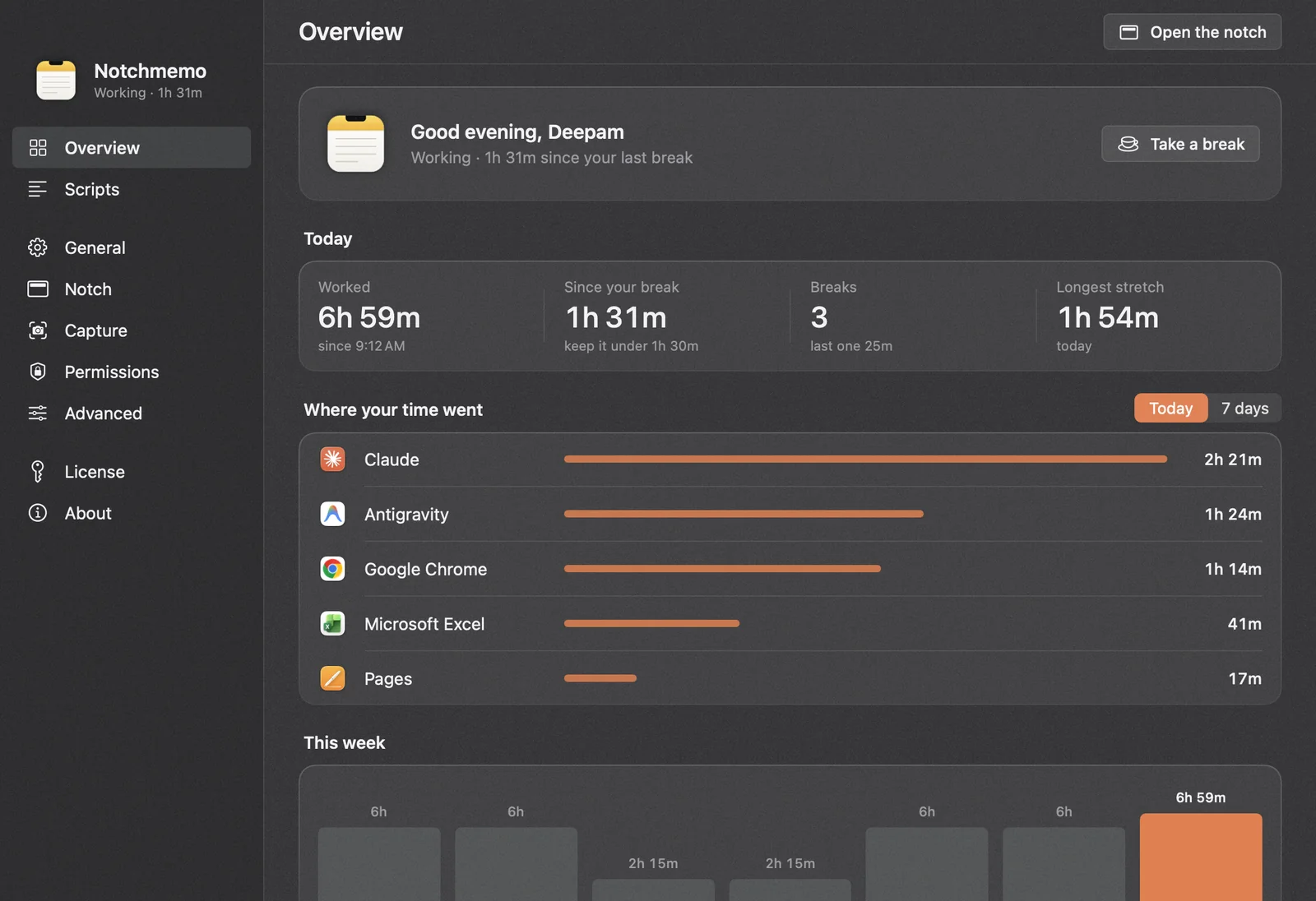
A few more you might like: set how long a stretch of work earns a break, exclude apps from notification history, and export your history to Excel.
Need a hand?
The Support page covers the common fixes, like a talk key that does nothing. Still stuck? Write to us on the Contact page.