You copy a link to send to a friend. Then you copy an address, paste it, and go back for the link. It’s gone. If you’ve ever lost something this way, don’t worry, it’s one of the most common small frustrations on a computer. Here’s how clipboard history on a Mac works and how to get back what you copied.
Why the Mac only remembers one thing
The Mac clipboard (Apple calls it the pasteboard) holds one item at a time. When you copy something new, it replaces what was there. That keeps things simple, but it also means there’s no undo for a copy.
Universal Clipboard, part of Apple’s Continuity features, lets you copy on your iPhone and paste on your Mac. It’s handy, but it still holds only the latest item.
Your built-in options
Apple added clipboard history to Spotlight in macOS Tahoe 26, so on the newest macOS you can look back at recent copies from Spotlight. On older versions there’s no built-in history, and the usual answer is a clipboard manager: a small app that saves what you copy so you can find it later.
What to look for in a clipboard manager
A clipboard manager sees everything you copy, so choose carefully. Here’s what matters most:
- Passwords stay out. Password managers mark the items they copy as concealed, following a convention described at nspasteboard.org. A good clipboard manager respects that and never saves them.
- It stays on your Mac. Your clipboard can hold private messages and bank details. It shouldn’t be synced to someone else’s server.
- Search is fast. You should be able to type a word and find it in a second.
- It knows where things came from. Seeing the source app helps you find the right copy.
- Paste is one step. Pick an item, press Return, and it lands where your cursor was.
How NotchMemo does it
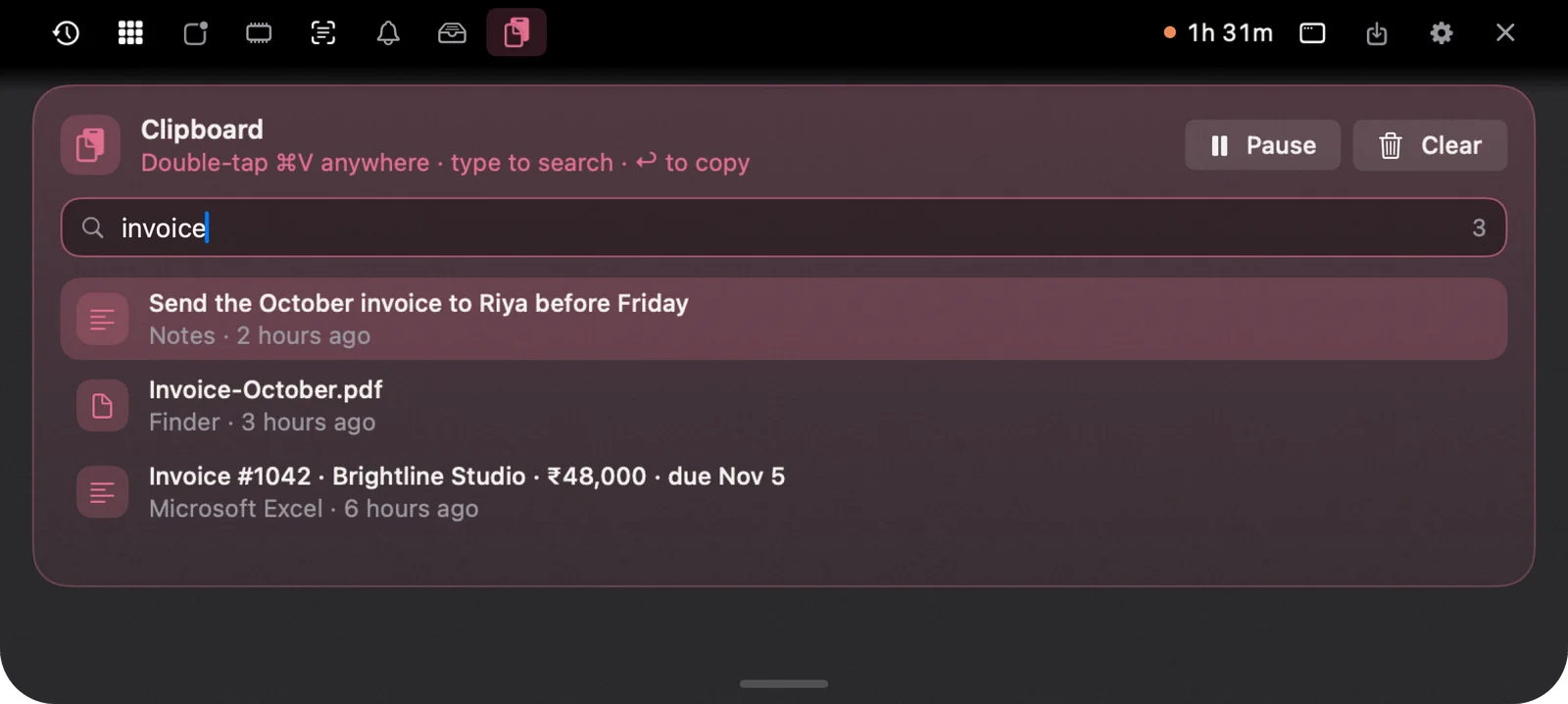
In NotchMemo, clipboard history lives in the notch. Double-tap ⌘V anywhere and everything you copied appears right below the notch.
- Type to search, then press Return to paste into the app you were using.
- Text, links and images are all kept, with the app they came from.
- Passwords and private items from password managers are never kept.
- Everything stays on your Mac, in a local database.
Screenshots work the same way. Take one with ⌘⇧4 and it’s already on your clipboard, ready to paste, and saved on the Shelf to drag anywhere later.
A small habit that saves real time
Once you know nothing you copy is lost, you stop being careful about it. You copy freely and find it again later. That’s the whole point. If you want to try it, our setup guide takes about five minutes.