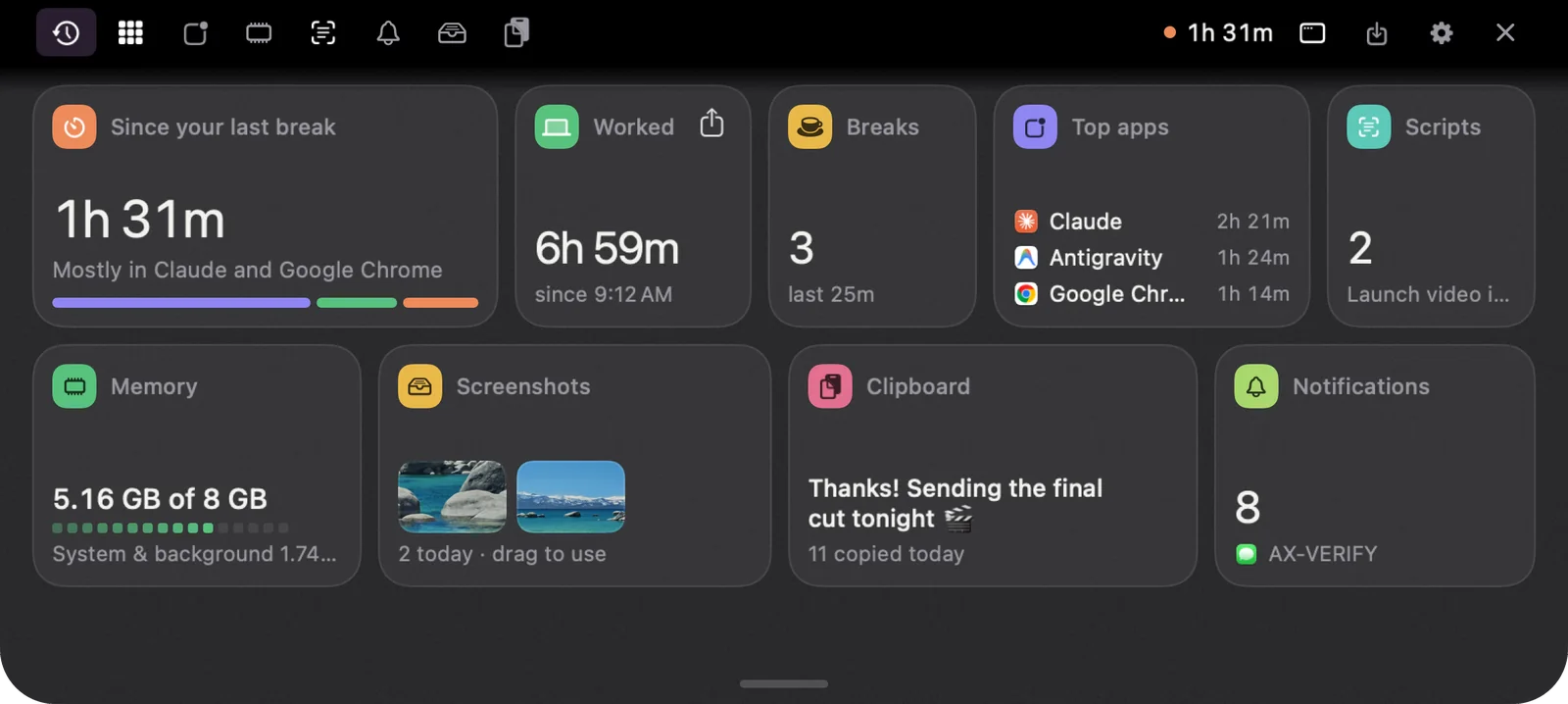
The first time I opened a new MacBook, my eyes went straight to it: a small black cutout at the top of the screen. The notch. A week later I stopped seeing it. That’s the funny thing about it. It sits in the one spot your eyes pass a hundred times a day, and it does almost nothing.
A Mac notch app changes that. It turns the space around the notch into a small, useful panel. Let me explain what that means, what one can do for you, and how to pick a good one.
Why MacBooks have a notch
Apple added the notch in October 2021, with the 14-inch and 16-inch MacBook Pro. According to Apple’s announcement, it made room for a sharper 1080p FaceTime HD camera while the screen edges got much thinner. The MacBook Air followed with the M2 model in 2022, and every MacBook since has kept it.
macOS treats the notch as a gap in the menu bar. Menu items flow around it, and that’s about it. So you end up with a dark strip at the very top of your screen that mostly holds empty space.
What a Mac notch app actually does
Here’s the simple version. A notch app lives in that strip. When you hover over the notch, click it, or press a shortcut, a panel drops down from it. When you’re done, it tucks back up.
If you’ve used an iPhone 14 Pro or newer, you already know the idea. Apple’s Dynamic Island, introduced in 2022, turns the iPhone’s camera cutout into a live space for timers, calls and music. A notch app does something similar for your Mac.
Things you can do from the notch
The best notch apps keep the small jobs of your day in one place. Common ones include:
- Quick answers. Ask a question and see the answer right where you’re already looking.
- Timers and breaks. A countdown beside the notch instead of another window.
- Clipboard history. Find something you copied an hour ago and paste it again.
- Screenshots. Grab the last screenshot and drag it into any app.
- A view of your day. How long you’ve worked, and where the time went.
What I like about this is the location. You don’t switch apps or dig through windows. You glance up, and it’s there.
How to choose a good notch app
Not every notch app is built the same. Based on what I’ve seen, these five things matter most:
- Privacy. A notch app sees a lot: your clipboard, screenshots, what you work on. Check that it keeps that data on your Mac.
- Pricing. Some apps charge monthly for a small utility. A one-time price is easier to justify.
- Macs without a notch. If you also use an iMac or an older MacBook, make sure it still works there.
- Clear permissions. It should explain why it needs each one, like Accessibility or the microphone.
- A light footprint. It should do very little in the background and stay out of your way.
How NotchMemo approaches it
We built NotchMemo around those five points. Hold the fn key to ask a question, dictate, or tell it to draft a message. Open the notch to see where your day went, find every screenshot and everything you copied, and get a nudge to take a break only after real work. Memo, a tiny friend who lives under the notch, waves hello every hour.
Your history, clipboard and screenshots stay on your Mac in a local database. There’s no account and no analytics, and it’s a one-time purchase. On Macs without a notch, it sits at the top centre of the screen instead.
The bottom line
Your MacBook’s notch is going to stay in the middle of your screen either way. A Mac notch app simply puts it to work. If you want to try it, the setup guide takes about five minutes.