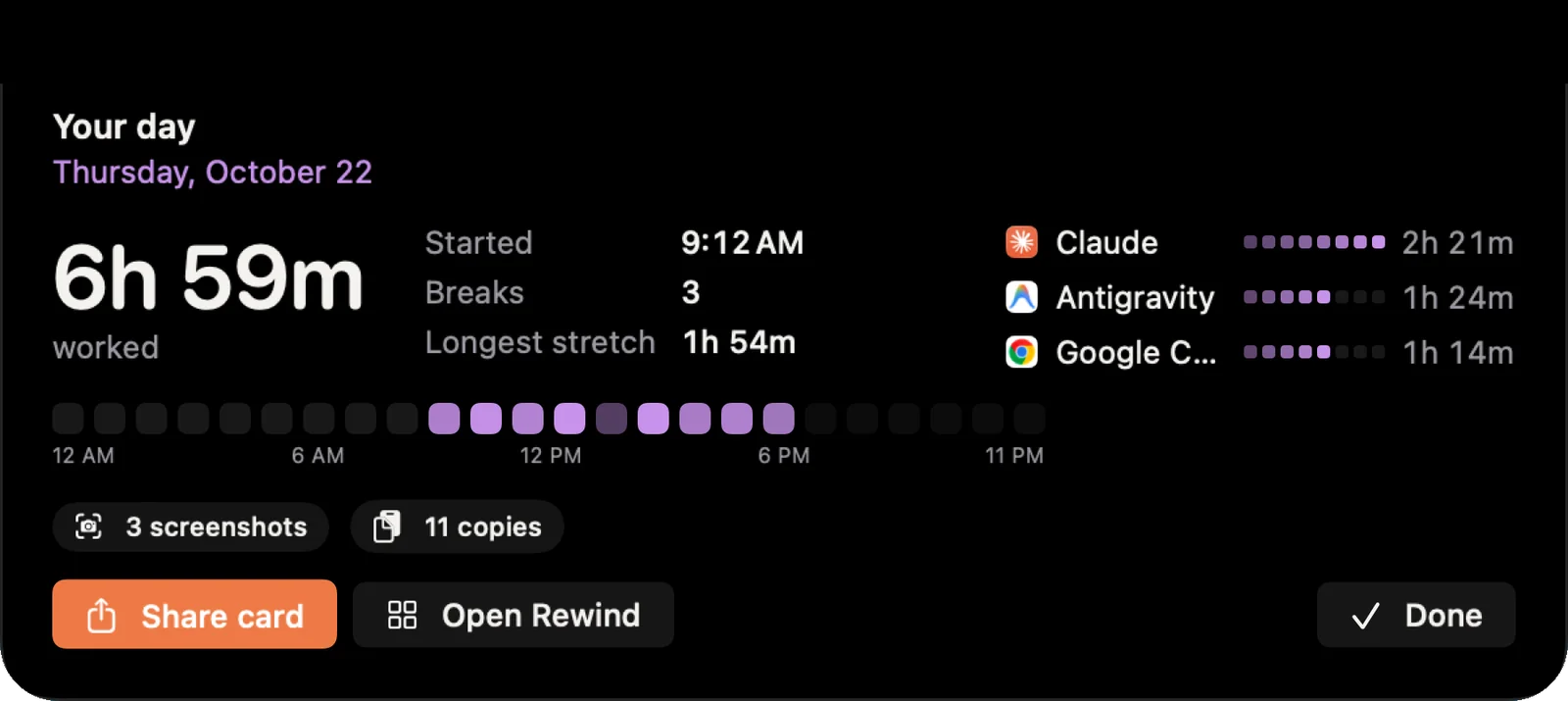
Around 6 PM, on any day you’ve worked for 30 minutes or more, NotchMemo shows you a recap of your day: worked time, when you started, your breaks, your longest stretch and your top apps. And whenever you want the full history, you can export it to Excel from the notch. Here’s how both work, and where your data lives.
Why an evening recap
Most of us end the workday by closing the laptop. There’s no moment where the day gets a shape. A short recap gives you that moment: a few seconds to notice that you started late, took no breaks, or spent the whole afternoon in one app.
It also does something quietly useful. Seeing the day summed up makes it easier to let go of it. The work has been counted, so you can stop counting it in your head.
The recap card
The recap appears in the notch around 6 PM, and only on days you worked 30 minutes or more, so a day off stays a day off. It shows your worked time, when you started, the breaks you took, your longest stretch and your top apps.
There’s a Share button on the card. It makes a good-looking image of your day that you can send to a friend, drop into a team chat, or keep for yourself. The recap is one of the notch updates you can turn on or off in Settings › Notch › Updates.
Export to Excel
The recap is a glance. The export is the full record. Click the download icon in the notch and choose Today, Yesterday, Last 7 days or any range you like.
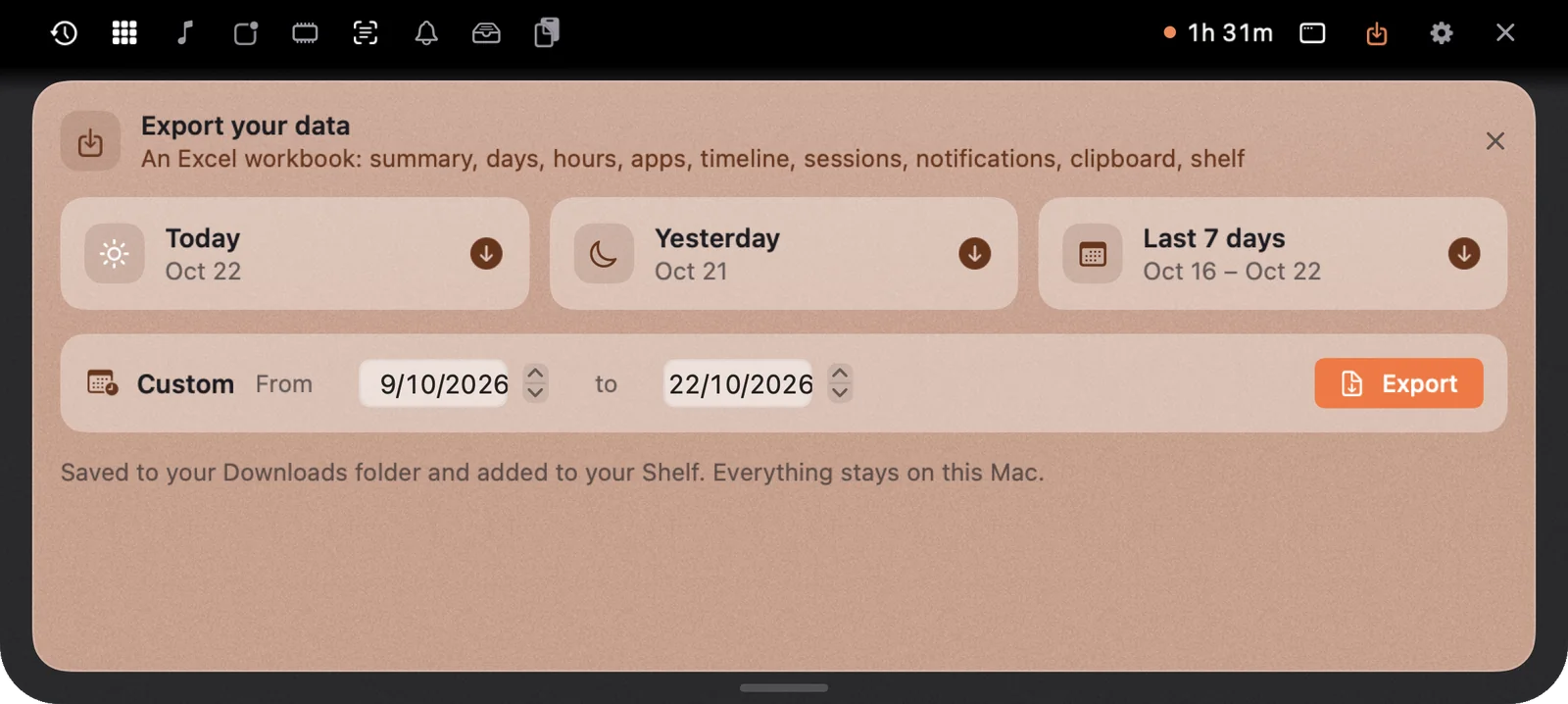
What you get is a 9-sheet workbook: a summary, then one sheet each for days, hours, apps, timeline, sessions, notifications, clipboard and shelf. It’s saved to your Downloads folder and lands on your Shelf too, so you can drag it straight into an email or a chat.
Because it’s an ordinary spreadsheet, you can do anything with it. Add up a week of worked hours for an invoice. Chart your start times over a month. Sort the apps sheet by time and see what really tops the list.
How NotchMemo handles your data
Everything in the recap and the export comes from the record NotchMemo keeps on your Mac, and you are always in charge of it.
- It stays on your Mac. Your activity, apps, clipboard, screenshots and notifications live in a database on your Mac. Never uploaded. No account, and no analytics in the app.
- You can see the folder. It’s in Application Support › Notchmemo. About › Show takes you straight there.
- Export everything as JSON. Settings › Advanced › Your data gives you a complete export, not just the spreadsheet.
- Erase all data, any time. The same page lets you erase everything NotchMemo has kept. It does what it says.
- Measured gently. The record is built only from whether you’re at the Mac and which app is in front. No keystrokes, no screen contents.
A small ritual for the end of the day
You don’t have to do anything for the recap to arrive. But if you give it five seconds when it does, you’ll start noticing things: the days that ran long, the weeks with no breaks, the app that eats every afternoon. And when you want to look closer, the spreadsheet is a click away. Not sure what else is inside the notch? The features guide walks through every tab.