In this guide
- Install and first launchBuy or try, drag to Applications, say hello, allow once.
- PermissionsWhat each one unlocks, what macOS shows, how to fix it later.
- LicenseActivate in ten seconds, move to another Mac, error messages.
- Every featureAll twenty tools, what each does and where to find it.
- Shortcuts and things to sayThe keys, and what to ask for while you hold fn.
- TroubleshootingIf something doesn’t work, the fix is probably here.
Your first five minutes
A short tour once NotchMemo is open. Each step shows off a different part.
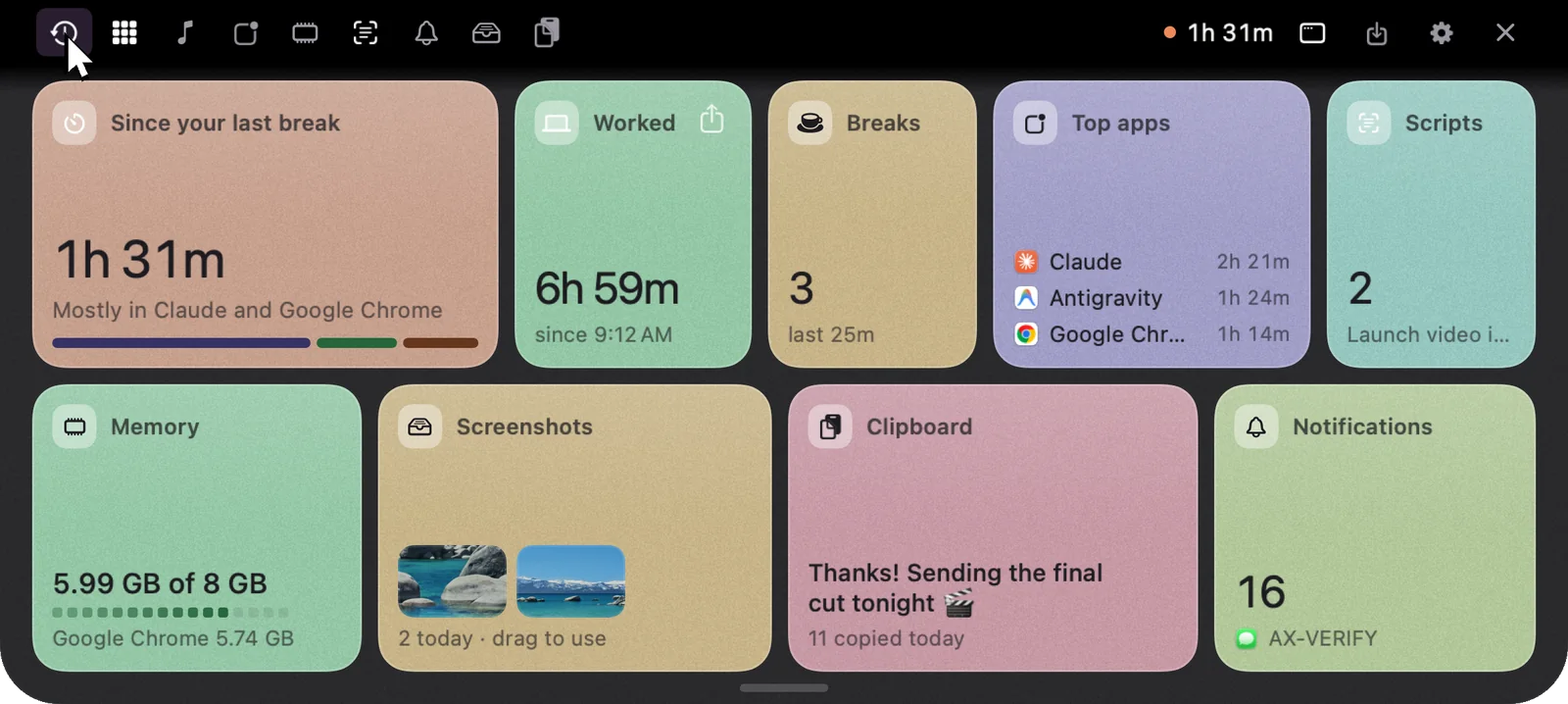
- Click the notch. Your Summary opens. Click a card to dive in.
- Hold fn and ask “what’s 18% GST on 2,500?” The answer appears in the notch.
- Hold fn and say “open Calculator”, then “close Calculator”. Voice actions.
- Click into Notes, hold fn and talk. Dictation types it, cleaned up.
- Press ⌘⇧4 and take a screenshot. It lands in the notch, already copied. Paste it with ⌘V.
- Copy a few things, then double-tap ⌘V. Your clipboard history, searchable.
- Play a song in any app. Artwork and controls in the notch.
- Point at Memo under the notch. Tickle it.
The Globe key
On many Macs the fn / Globe key also opens Emoji or Dictation. For the smoothest hold-to-talk, set System Settings › Keyboard › “Press Globe key to” › Do Nothing, or choose Right ⌘ as the talk key in Settings › Notch › Talk to NotchMemo. NotchMemo shows a button to that setting when it’s needed.
Requirements
- macOS 14 Sonoma or later.
- Made for MacBooks with a notch; works on any Mac (it sits at the top centre of the screen instead).
- Apple Intelligence features: Apple silicon Mac with macOS 26 and Apple Intelligence on (optional).
- Meeting notes of the other side: macOS 14.2 or later.
- Hinglish: a Sarvam AI API key.
Need a hand?
Check troubleshooting first. Still stuck? The Support page has our email, and the FAQ covers the rest.