Skip to content

User guide

What each permission is for

Everything NotchMemo asks for, in plain words, with what macOS shows and how to fix it later. All of it stays on the Mac.

Asked at first launch (Allow all)

PermissionWhat it unlocksWhat you’ll seeTurn it on later
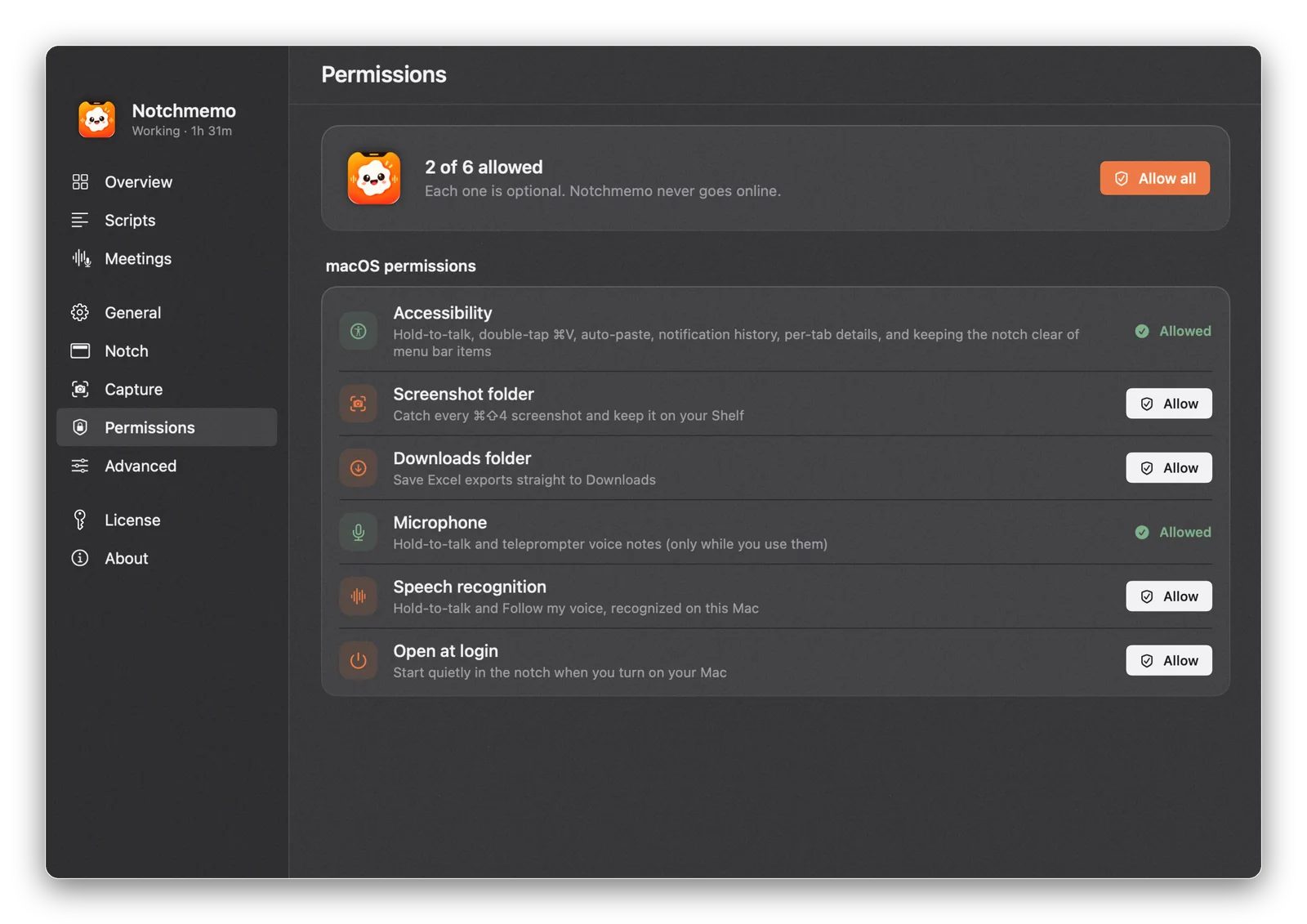
AccessibilityHold-to-talk, double-tap ⌘V, auto-paste, typing dictation, notification history, per-tab details, keeping the notch clear of menu bar icons.System Settings opens at Accessibility. Switch Notchmemo on.System Settings › Privacy & Security › Accessibility
Screenshot folderCatching every ⌘⇧4 screenshot for the Shelf (your Desktop, or wherever screenshots are saved).“Notchmemo would like to access files in your Desktop folder.” Allow.Privacy & Security › Files and Folders › Notchmemo › Desktop
Downloads folderSaving Excel exports straight to Downloads.“…access files in your Downloads folder.” Allow.Privacy & Security › Files and Folders › Notchmemo › Downloads
MicrophoneHold-to-talk, teleprompter voice notes, meeting notes. Only while you use them.“Notchmemo would like to access the microphone.” Allow.Privacy & Security › Microphone
Speech recognitionTurning speech into text on the Mac (talking, dictation, Follow my voice).“…would like to access Speech Recognition.” Allow.Privacy & Security › Speech Recognition
Open at loginStarting quietly in the notch when you turn on your Mac.A note that Notchmemo was added to Login Items.System Settings › General › Login Items
Settings › Permissions in Notchmemo: each permission with its status, live.
Settings › Permissions always shows what’s allowed, live.

Asked only when you first use the feature

PermissionWhenWhat it’s for
ContactsFirst “message Rahul…” or “email Priya…”Finding their number or address. Read on the Mac, never sent.
Automation (your browser)First “close the Gmail tab” or “play the second one”Seeing open tabs’ titles and addresses to find the one to close or reuse.
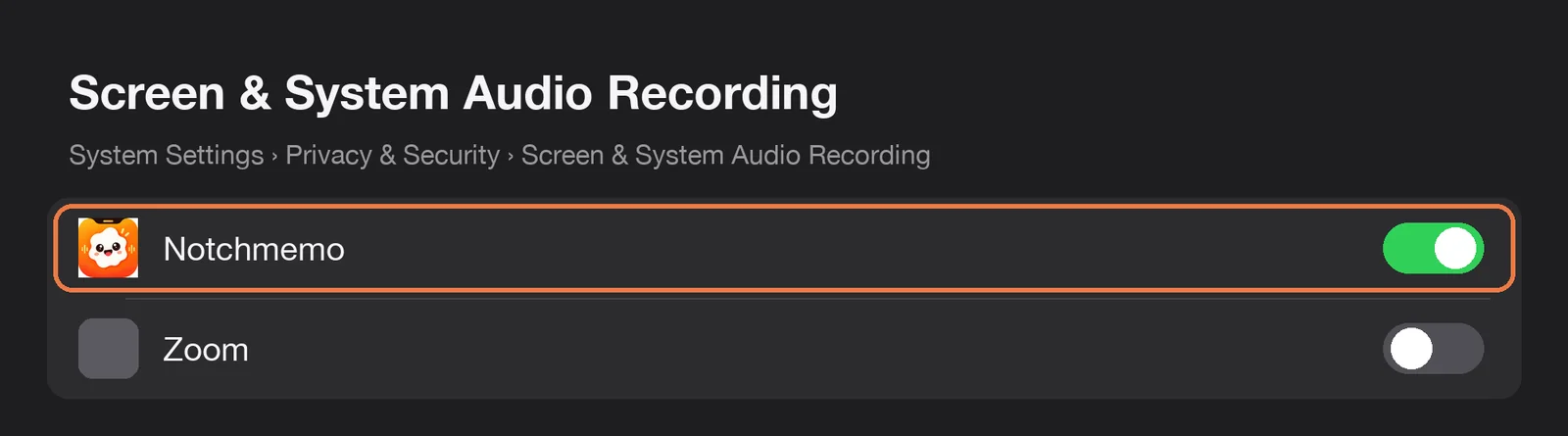
Screen & System Audio RecordingFirst meeting notesHearing the call’s audio so the other people are in the transcript. Audio only; nothing on screen is recorded.
Fetch iPhone app icons (in-app)Notifications from iPhone appsLooking up an app’s icon on the App Store. Otherwise a coloured letter is shown.
System Settings › Privacy & Security › Screen & System Audio Recording with Notchmemo switched on.
For meeting notes: let Notchmemo hear the call.

If something doesn’t work

  • Switched on but not working (common after an update): open Settings › Permissions in NotchMemo and press Allow again. NotchMemo clears its old entry and asks fresh.
  • Said Don’t Allow by mistake? macOS remembers it. The row shows Open Settings: switch NotchMemo on there.
  • Settings › Permissions in the app always shows what’s allowed, live.

Asks once. Explains everything. One screen, Allow all, done. Each permission says exactly what it’s for, and all of it stays on your Mac. See what stays on your Mac for the whole picture.
More in the guide