A tiny friend who lives in your notch
01 · Meet Memo
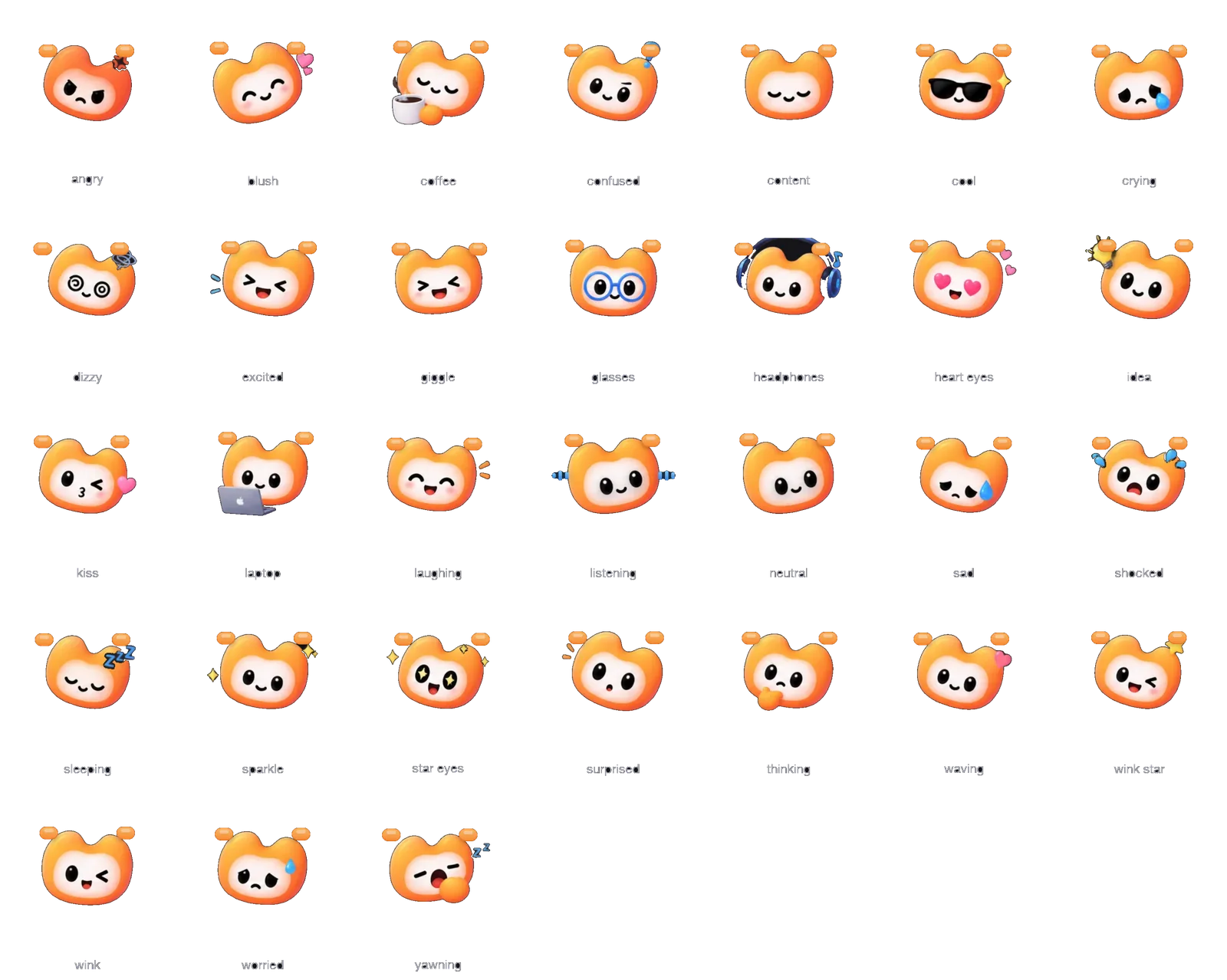
Memo is a soft little cloud with a face who hangs from the notch. It makes NotchMemo feel alive.
- Rests as a tiny face under the notch: blinks, looks around, follows your pointer.
- Waves hello every hour with how much you’ve worked (“Hi Deepam! 4h 12m of work today. Nice going.”).
- Smiles when the notch opens, waves bye when it closes. Hover over it to tickle it: blushes, giggles, heart eyes.
- Reacts to your day: listens and thinks while you talk, puts on sunglasses when you tidy up, sleepy at break time.
- Mood check-ins twice a day with emoji answers (kept on your Mac). Gets smaller while you talk so it never covers the answer.
How to use it. Settings › Notch › Memo: choose All day, Only with news or Off, and how often it checks in.
Hold fn. Ask anything.
02 · Talk to your Mac
Hold the fn (Globe) key, speak, let go. The answer appears in the notch, short and to the point.
- Listening starts the moment you press: a ribbon wave moves with your voice and your words appear live.
- Instant answers worked out on the Mac: time, date, percentages and GST, sums, unit maths, timers.
- Knows your day: “How long have I worked today?”, “How many breaks did I take?”, “What’s my screen time?”
- Open questions answered by Apple Intelligence, or by the AI you connect. Weather, if you turn on Online lookups.
- Compact answers: your question, then Memo’s reply, with small Copy and Close buttons. Pressing any other key during the hold cancels it, so your shortcuts keep working.
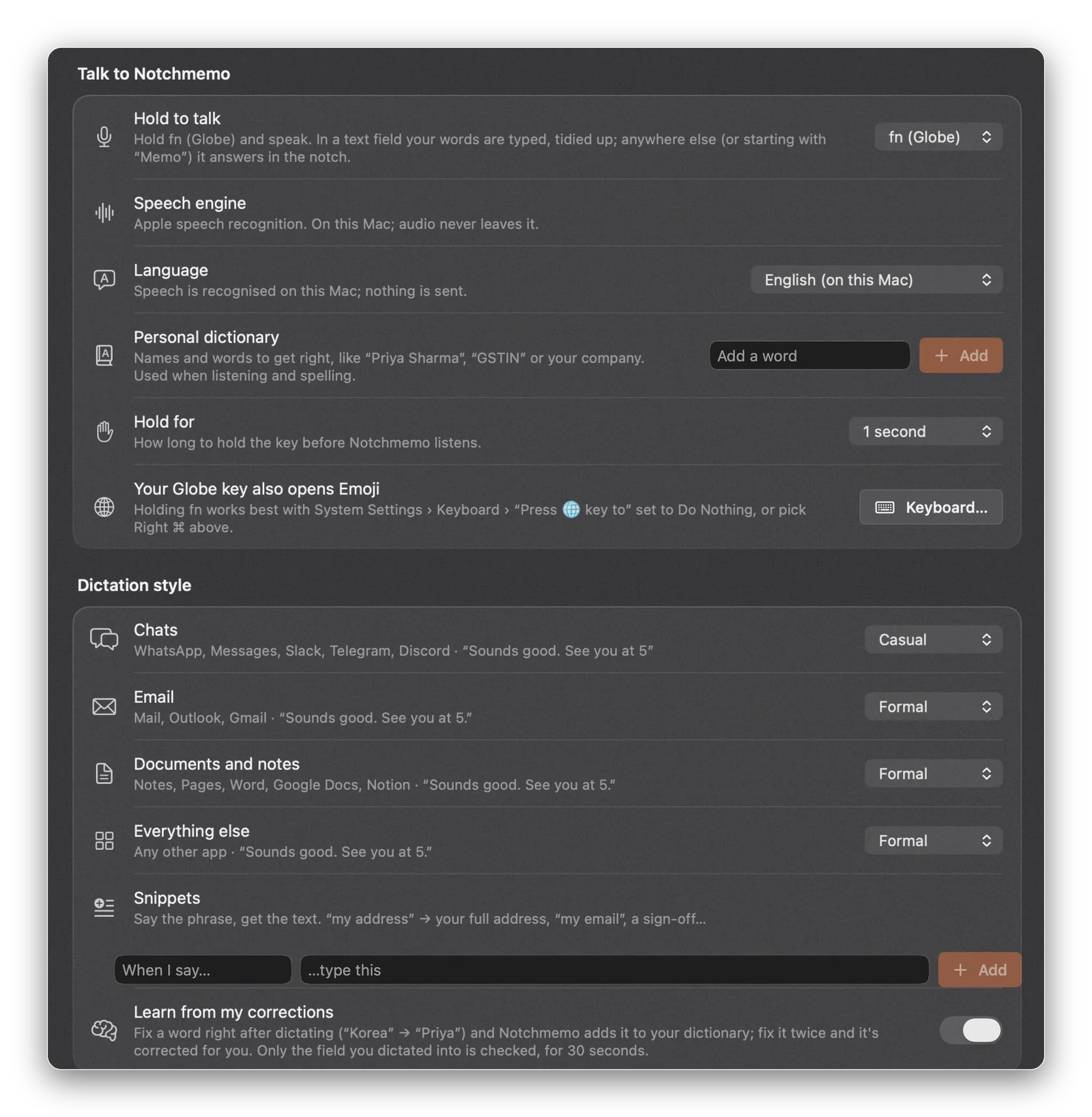
How to use it. Hold fn (or Right ⌘, Right ⌥ or ⌃, your choice) for half a second, speak, release. Change the key and hold time in Settings › Notch › Talk to NotchMemo.

Say it. It’s done.
03 · Voice actions
NotchMemo doesn’t stop at answers. It opens, writes, plays and closes things for you.
- Messages: “Message Rahul on WhatsApp saying I’ll be 10 minutes late.” Finds Rahul in Contacts and opens the chat with the message typed.
- Email: “Draft an email to Priya about tomorrow’s meeting.” Writes it and opens it in Mail, Gmail or Outlook.
- Apps and web: “Open Spotify”, “close Calculator”, “Search best laptops in Chrome”, “close the Gmail tab”.
- Music: “Play lofi on YouTube” (plays the first result), then “play the second one”, “pause”, “next”. Spotify and Apple Music too.
- Change your mind: “change it to say good morning”, “make it more formal”, “cancel it”. Selected text: “fix the grammar”, “translate this to Hindi”.
- Nothing is ever sent for you. Drafts open ready, and you press Send.
How to use it. Hold fn and say what you want done. Follow-ups work for a few seconds after (“play the second one”).

Talk naturally. It types what you meant.
04 · Dictation
Click into any text box, hold fn and talk. NotchMemo tidies it up and types it in.
- Understands self-corrections: “meet you at 5 PM, oh no sorry, 5 AM” becomes “Meet you at 5 AM.”
- Removes um, uh and repeats; adds capitals, commas, full stops and question marks.
- Tone per app: relaxed in chats, polished in email, careful in documents.
- Snippets: say a short phrase, get your full address, sign-off or link. Personal dictionary for names and words it should always spell your way.
- Learns from your corrections. Works in WhatsApp, Slack, Mail, Notes, browsers: anywhere you can type.
- Speech is recognised on your Mac; dictation is never sent online (unless you turn on Hinglish).
How to use it. Put the cursor in a text field, hold fn, speak, release. Settings › Notch › Dictation style for tone, snippets and your dictionary.

Speak Hindi and English, mixed
05 · Hinglish
Turn on Hinglish mode and talk the way you really talk. Powered by Sarvam AI (Saaras v3) with your own key.
- Understands Hindi and English mixed in one sentence.
- Choose how Hinglish is typed: in Roman letters or Devanagari.
- Commands and questions are always understood in English.
- While it’s on, what you say is sent to Sarvam with your key; otherwise speech never leaves your Mac.
How to use it. Settings › Notch › Talk to NotchMemo › Speech engine and Language: choose Hinglish and paste your Sarvam API key.
Every call, written up for you
06 · Meeting notes
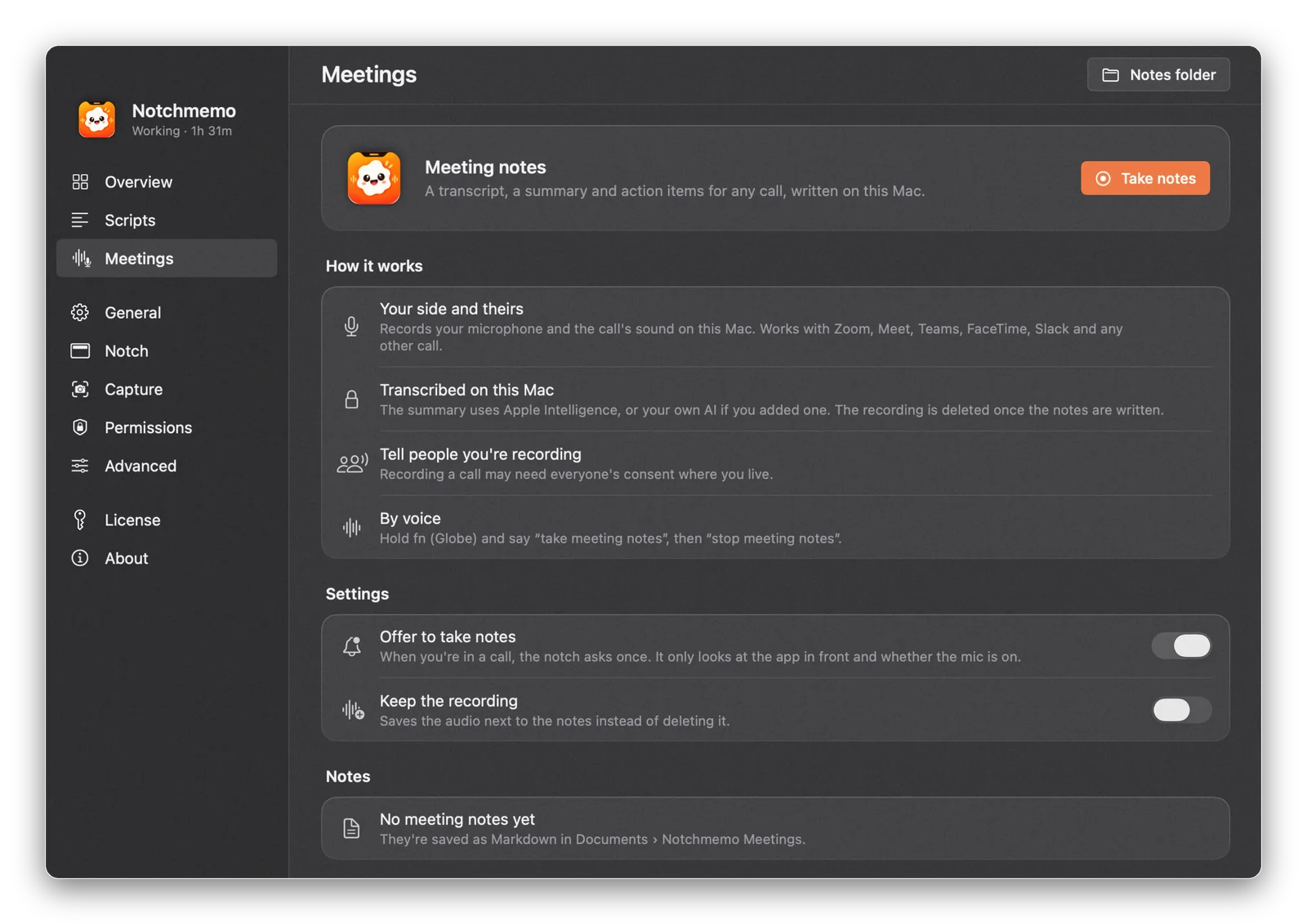
NotchMemo records your side and theirs, transcribes on your Mac, and writes a summary with action items.
- Works with Zoom, Google Meet, Teams, FaceTime, Slack and any other call.
- Records your microphone and the call’s sound together, echo removed, on one clock. A red dot in the notch while it records.
- When you join a call, the notch offers once to take notes.
- Summary, key points and action items, saved as Markdown in Documents › NotchMemo Meetings.
- Transcribed on your Mac; the summary uses Apple Intelligence or your own AI. The recording is deleted after, unless you keep it.
How to use it. Click Take notes on the Meetings page, accept the offer in the notch, or hold fn and say “take meeting notes” (then “stop meeting notes”). First time: allow Screen & System Audio Recording so it can hear the other people.
Your day, at a glance
07 · Summary
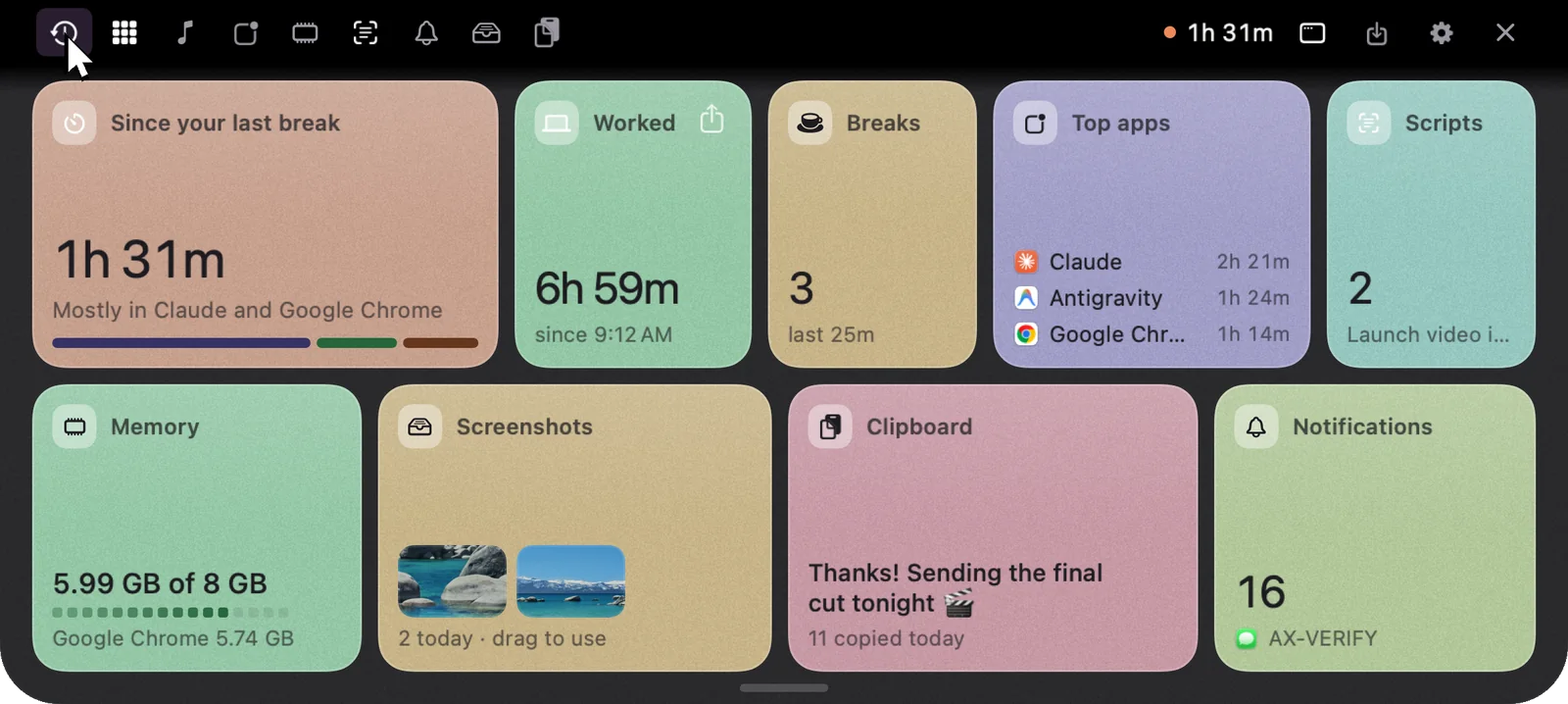
Open the notch for a calm, colourful summary built from what actually happened on your Mac.
- Time since your last break, with what you’ve been in. Worked time today and when you started; breaks taken.
- Top apps, scripts, memory, today’s screenshots, last thing copied, notifications.
- Every card opens its own tab. Each one in its own pastel colour with fine grain.
How to use it. Click the notch (or turn on Open on hover). Esc or click away to close.
See exactly where your day went
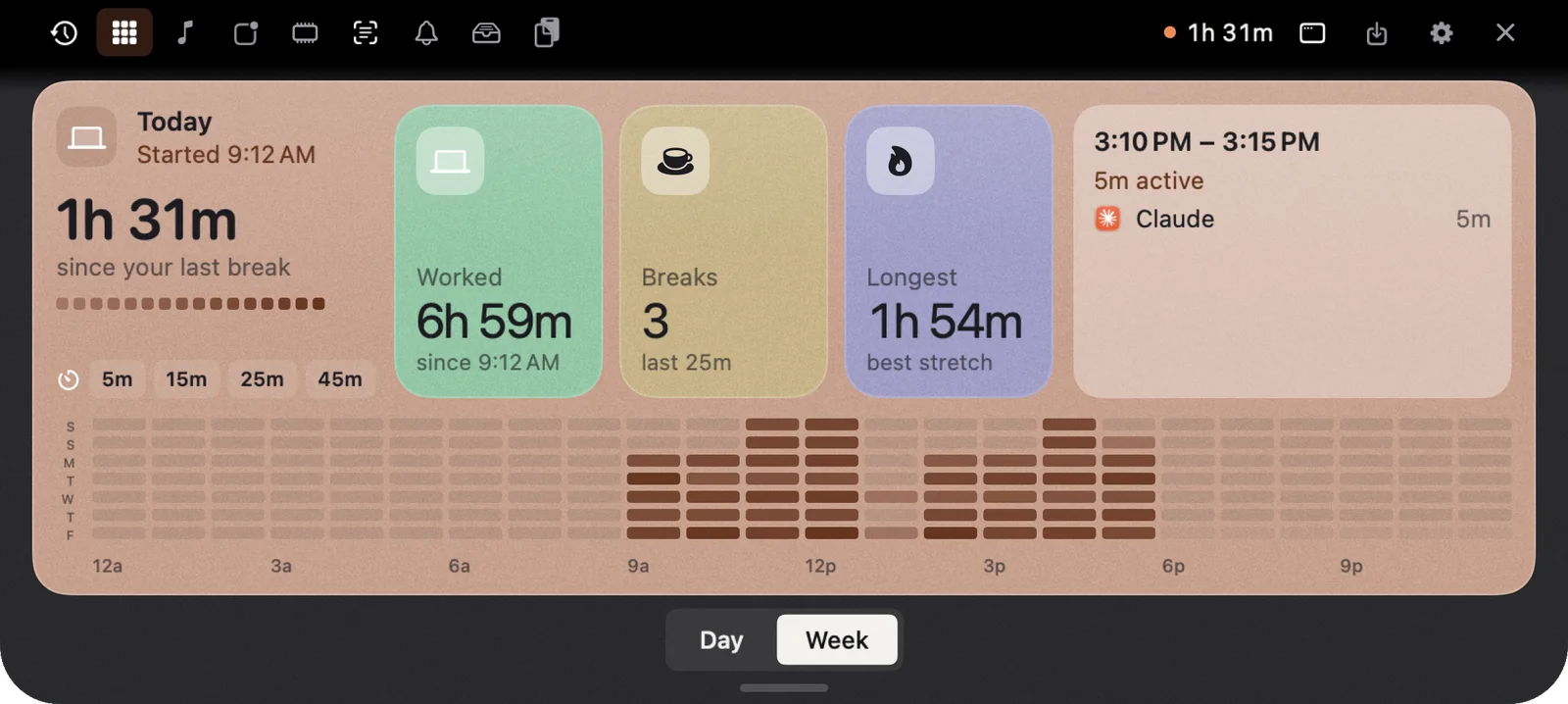
08 · Today, Yesterday and Week
Every five minutes of your day as a dot. Hover any dot to see what you were doing.
- Worked time, breaks and your longest stretch. A dot strip of the whole day; hover for the app and time.
- ‹ Yesterday › day picker, up to 30 days back. Week view: seven days side by side; click one to open it.
- Activity comes only from whether you’re at the Mac. No keystrokes, no screen contents.
How to use it. Notch › Today tab. Use ‹ › to change day, Day / Week to switch views.
Where your time went, app by app
09 · Apps
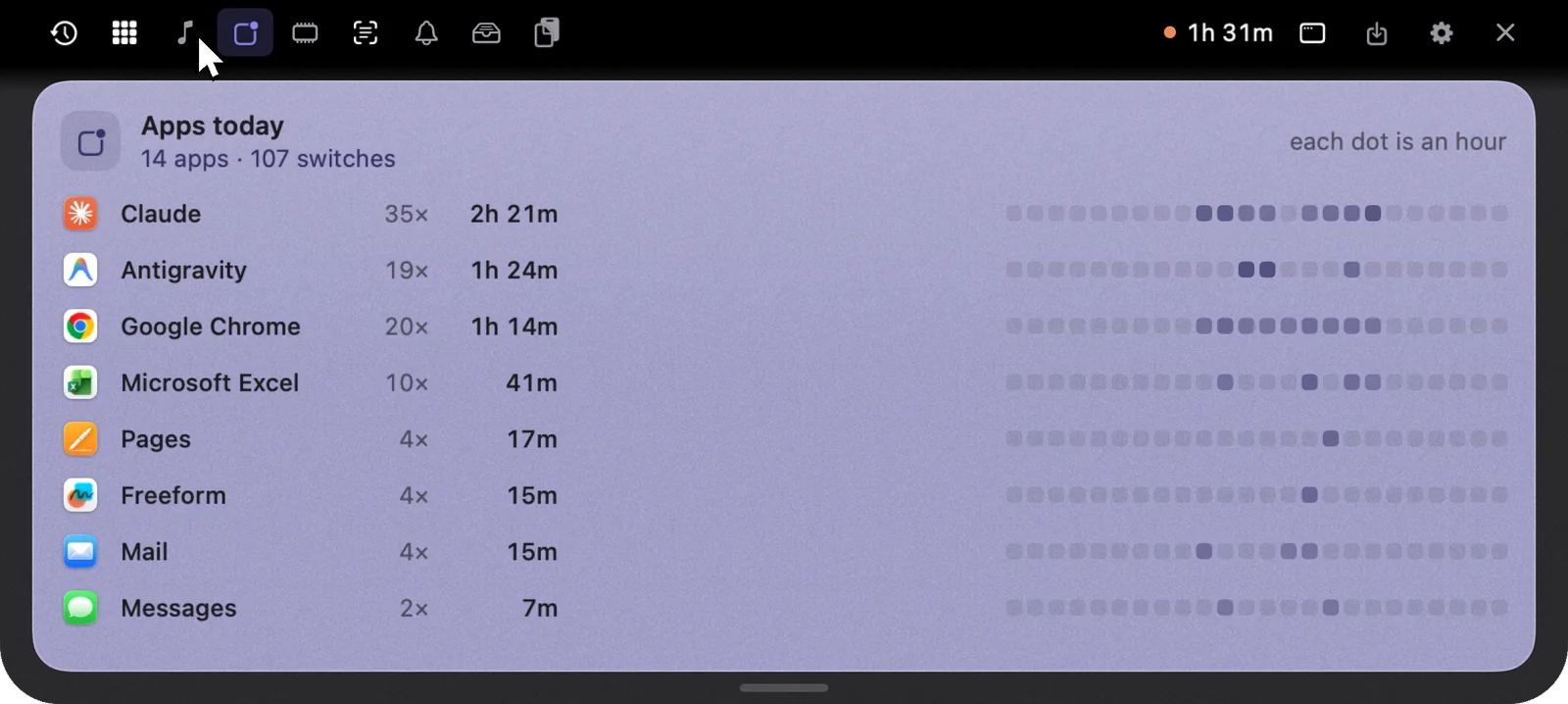
Time in front, how often you switched, and when, hour by hour.
- Every app you used today with its time and number of switches.
- An hourly strip per app: see when you were in Excel and when in Chrome.
- Real app icons.
How to use it. Notch › Apps tab.
What’s playing, right in the notch
10 · Music
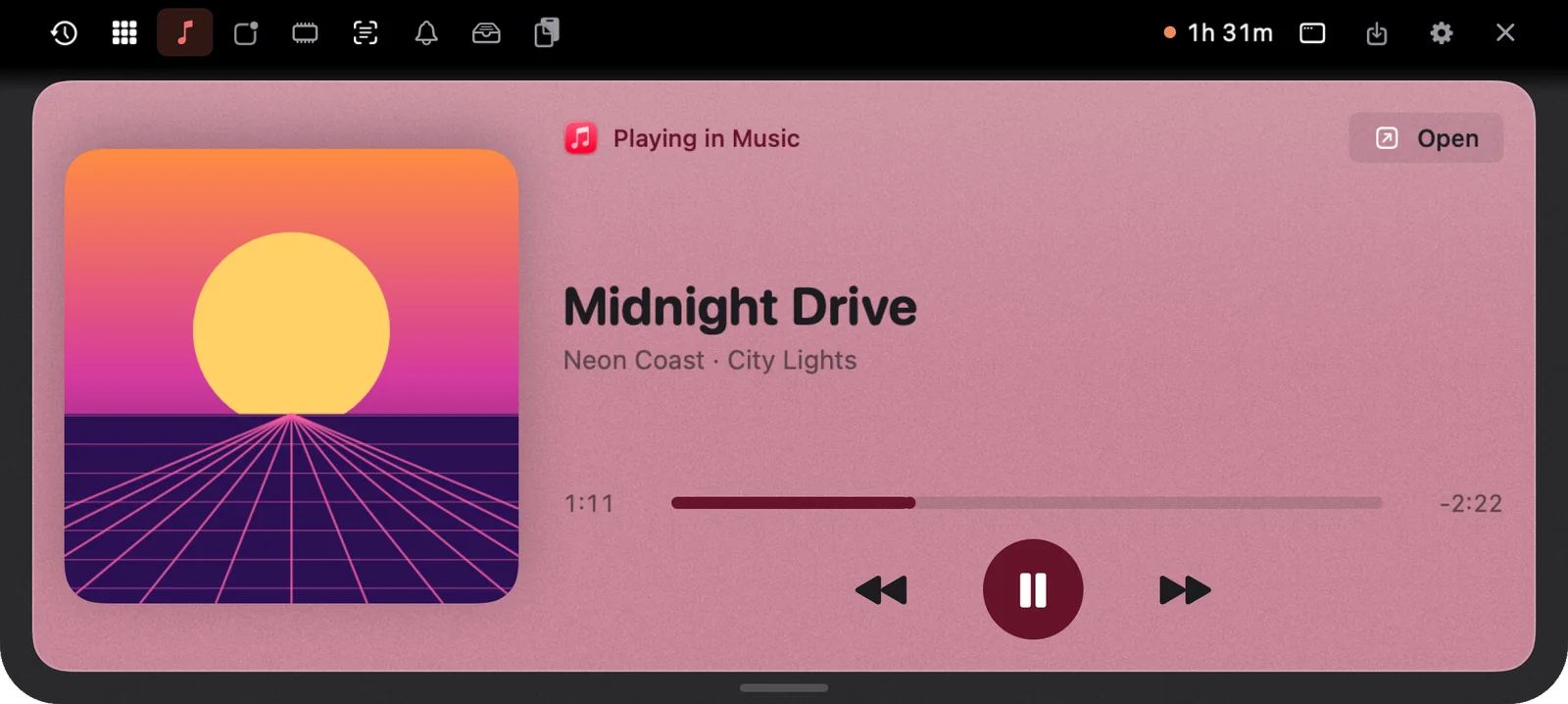
Music from any app, with artwork and controls, plus little dancing bars beside the closed notch.
- Works with Apple Music, Spotify, YouTube in the browser and other players.
- Artwork, title, artist, a progress bar, and play/pause, back, next. A new song pops out of the notch for a moment.
- While music plays, the artwork and moving bars sit beside the closed notch.
How to use it. Notch › Music tab. Turn it on or off in Settings › Notch › Updates › Music.
Volume and brightness, in the notch
11 · Volume and brightness
Press the volume or brightness keys and a clean level bar slides out of the notch.
- Replaces the big box in the middle of the screen with a slim bar under the notch.
- Moves in the same 16 steps as macOS; shows mute.
How to use it. Just press your volume or brightness keys. On or off in Settings › Notch › Updates (needs Accessibility).

What’s slowing your Mac? Fixed in one click
12 · System
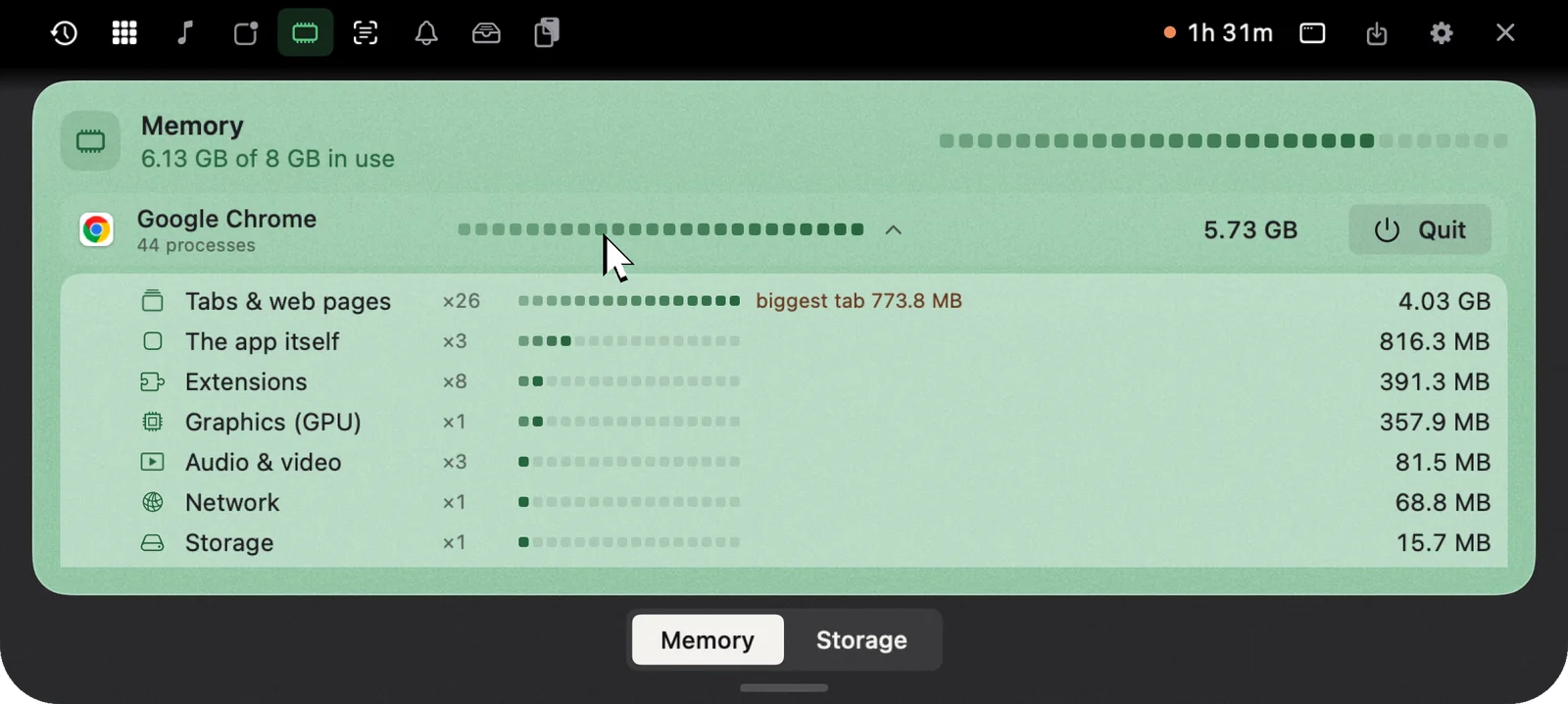
Memory and storage at a glance, and exactly what’s using them.
- Live memory by app, including the helper processes behind it. Open an app to see its parts (Chrome: tabs, extensions, GPU, network…).
- Quit in one click, or force quit if it’s stuck.
- Storage view: what’s filling your disk, scanned quietly while you’re away.
How to use it. Notch › System tab. Memory / Storage switch at the bottom.
Every screenshot, already copied
13 · Screenshots, Shelf and AirDrop
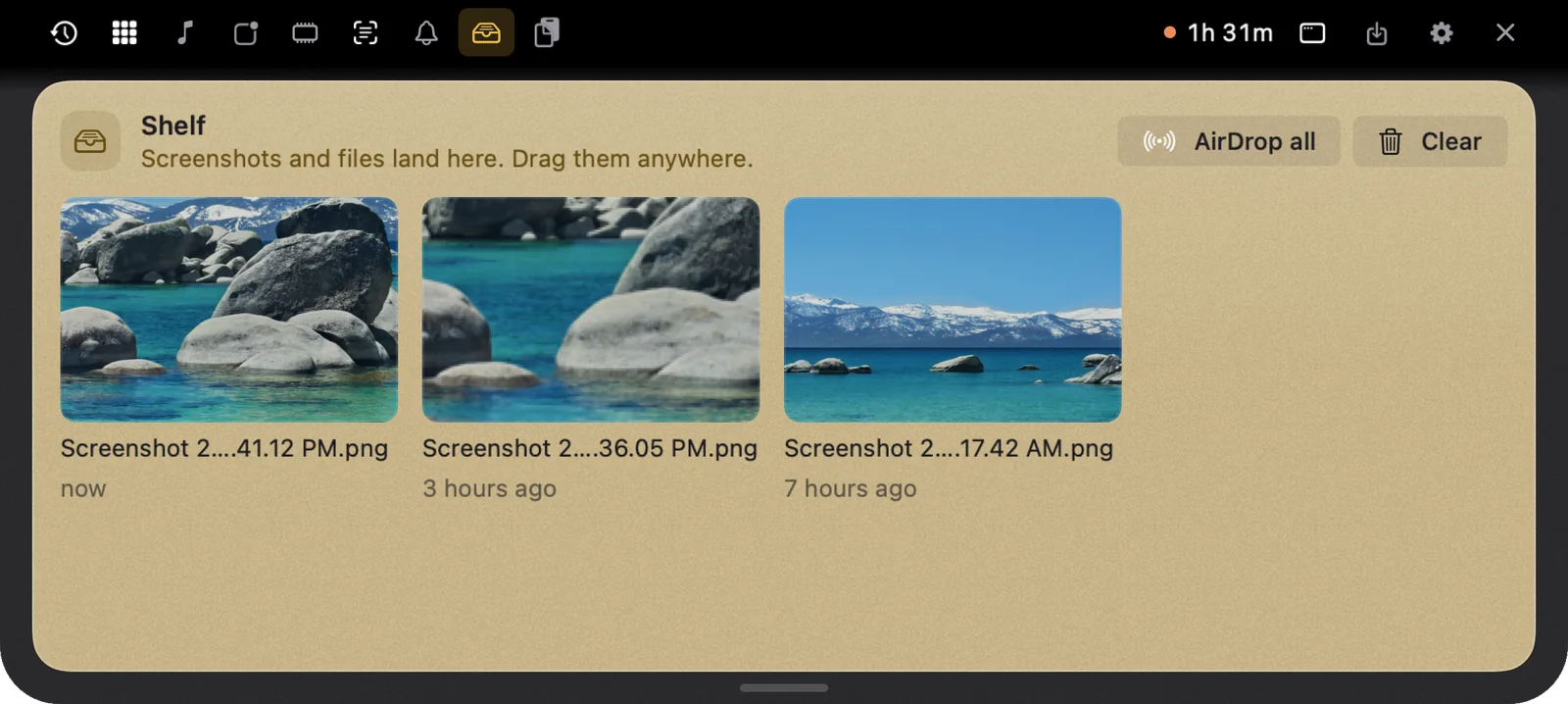
Take a screenshot and it lands in the notch, already on your clipboard. Drag files onto the notch to keep or AirDrop them.
- ⌘⇧4 or ⌘⇧3: the screenshot pops into the notch and is ready to paste with ⌘V. Kept on the Shelf: drag it into any app, any time.
- Instant mode turns off macOS’s floating preview, so screenshots arrive right away.
- Drag any file onto the notch: drop it on Keep on Shelf, or on AirDrop to send it to your iPhone, iPad or a Mac nearby. AirDrop all, or Clear, in one click.
How to use it. Settings › Capture › Screenshots for copy and instant mode. Needs the Screenshot folder permission.
Everything you copied, one double-tap away
14 · Clipboard
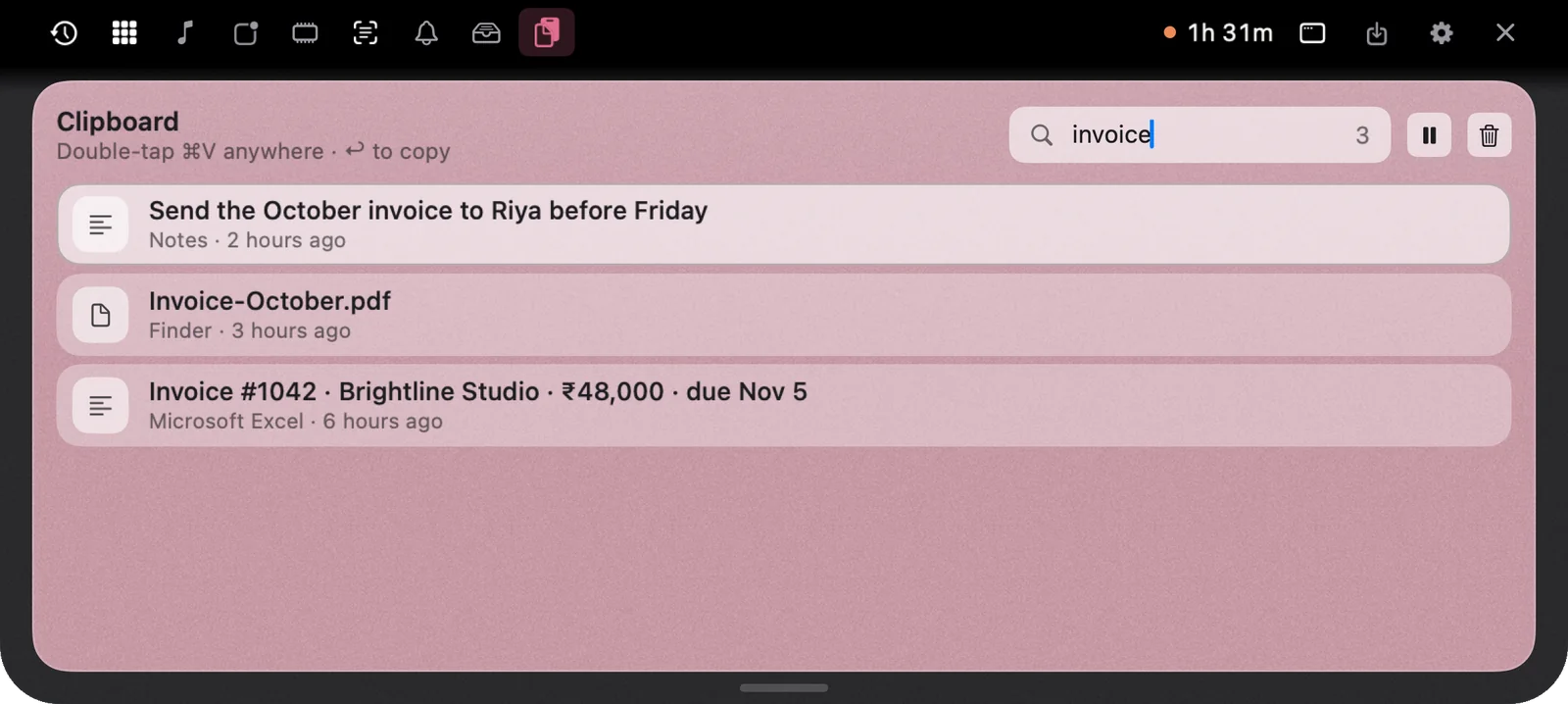
Double-tap ⌘V anywhere to open your clipboard history in the notch.
- Text, links, files and images from every app, with where they came from.
- Type to search; ↩ pastes into the app you were using.
- Passwords and private items from password managers are never kept. Pause history or clear it any time.
How to use it. Double-tap ⌘V. Or pick ⇧⌘V, ⌥⌘V or ⌃⌥V in Settings › Capture › Clipboard.
Missed a notification? It’s still here
15 · Notifications
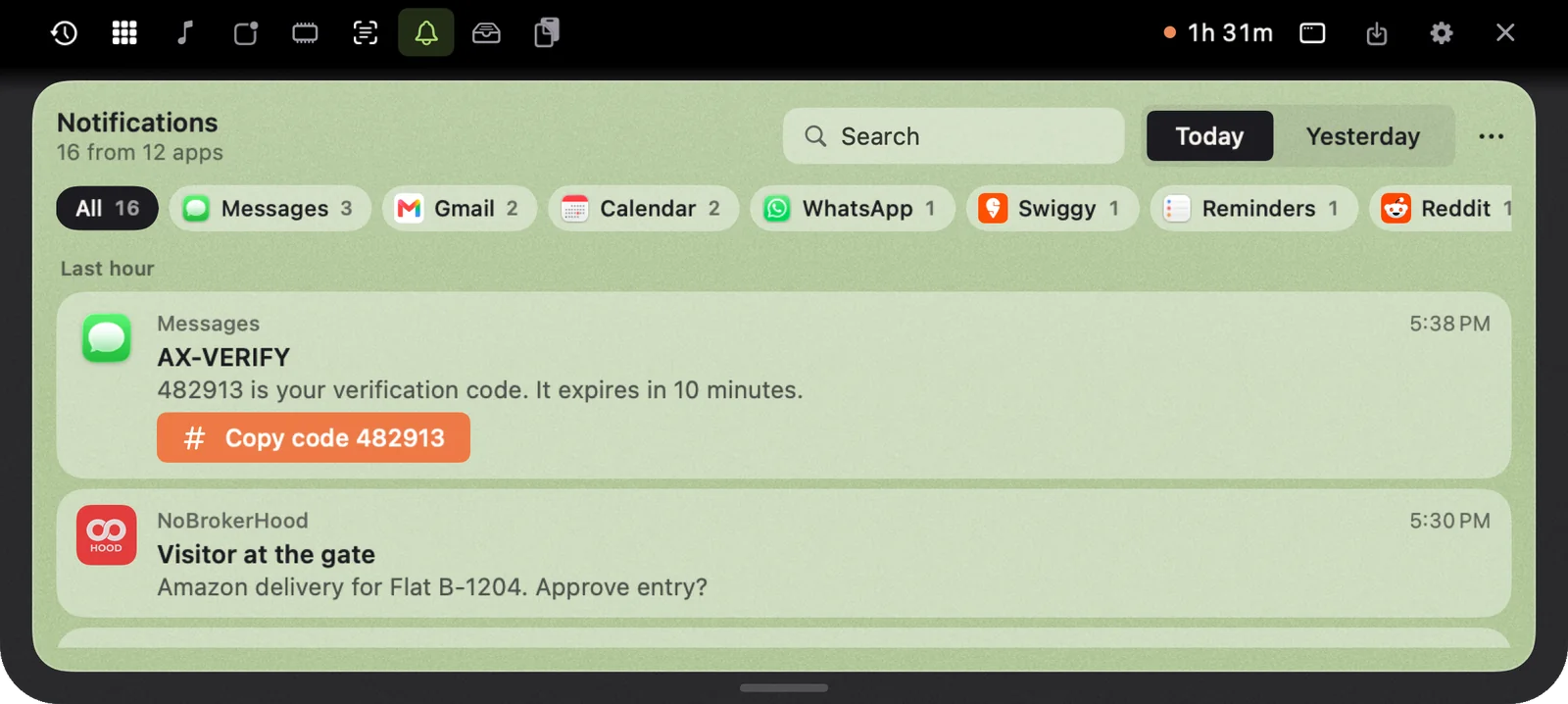
A searchable history of the notifications you saw, with each app’s real icon, and one-tap codes.
- Today and Yesterday, filtered by app, with search. Verification codes get a Copy code button.
- iPhone notifications (through your Mac) show the app’s own icon, if you allow it to fetch icons.
- Kept on this Mac for 30 days. Leave out any app you don’t want kept.
How to use it. Notch › Notifications tab. Needs Accessibility. Right-click a notification › Don’t keep notifications from that app.
A teleprompter that follows your voice
16 · Teleprompter
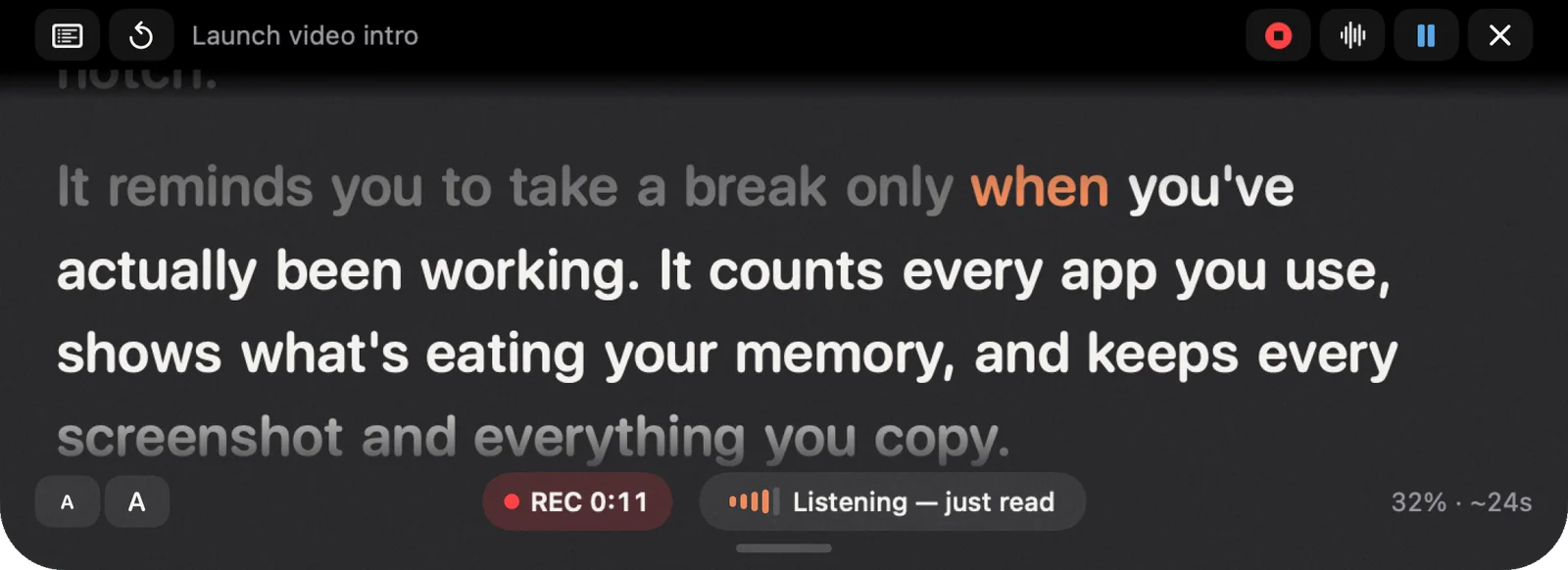
Paste a script, press start, and read from the notch, right under your camera.
- Scrolls as you speak (on-device speech recognition), or at a steady speed.
- Records a voice note while you read; saved to the Shelf and Movies › NotchMemo.
- Hidden from screen recordings, so the script never shows in your video. Optional sync clap to line up audio and video.
- Keyboard: Space pause, arrows to move, Esc to stop.
How to use it. Write scripts on the Scripts page, then press Start, or start one from the notch’s Scripts tab.
Breaks when you actually need them
17 · Breaks and live activities
NotchMemo knows the difference between working and being away, and shows timers beside the notch.
- A gentle nudge only after a real stretch of work (you choose how long; 1h 30m by default).
- Only time you’re actually at the Mac counts; no keyboard or mouse for a while is a break. Welcomes you back when you return.
- Timers (“set a timer for 25 minutes”) run as a live activity beside the notch, with heads-ups. Live activities never cover your menu bar icons.
How to use it. Settings › General › Breaks for the timing. Say “timer for 25 minutes” or use the notch.

Your day, wrapped up. Your data, yours
18 · Recap and export
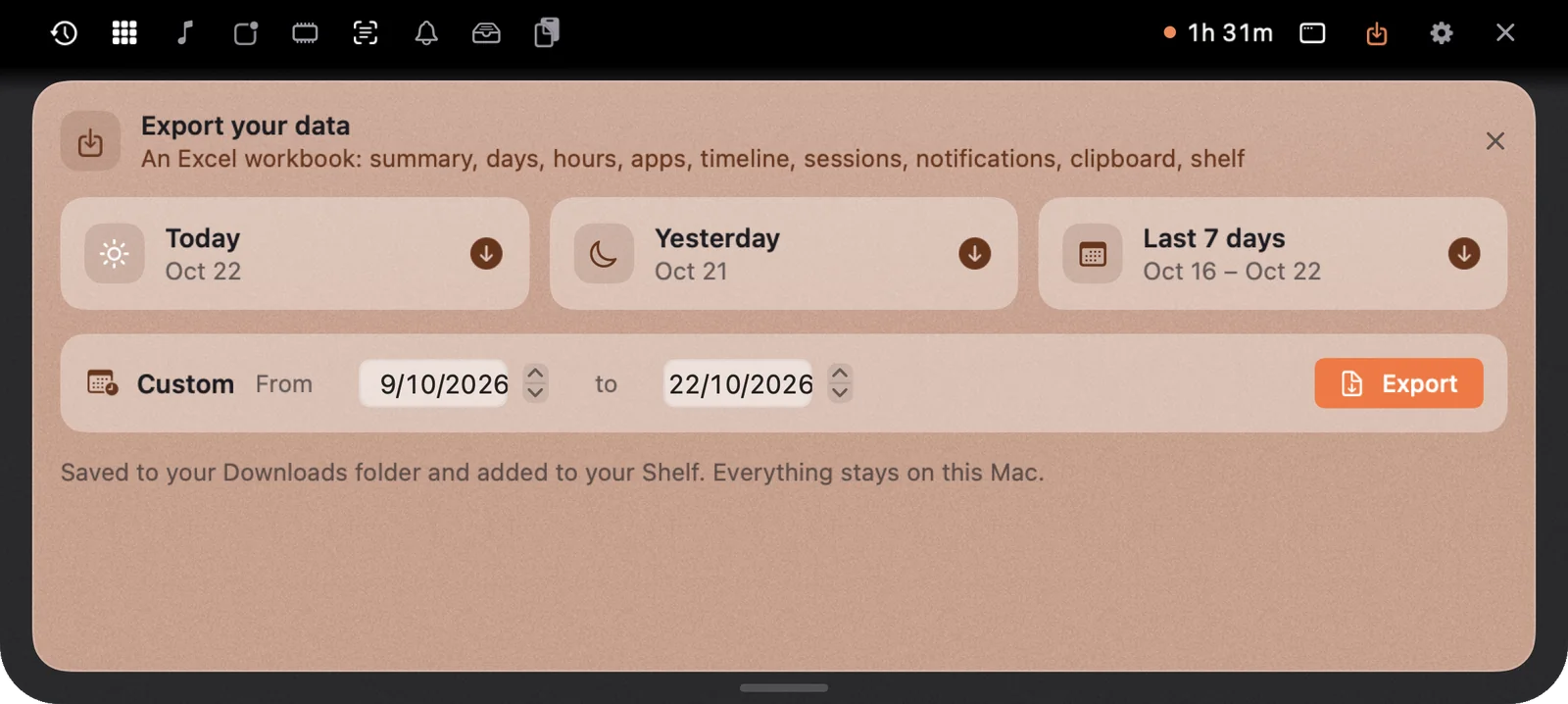
An evening card about your day, and your whole history in Excel whenever you want it.
- Evening recap on days you worked 30+ minutes: worked time, start, breaks, longest stretch, top apps. Share card: a good-looking image of your day.
- Export to Excel: Today, Yesterday, Last 7 days or any range. A 9-sheet workbook: summary, days, hours, apps, timeline, sessions, notifications, clipboard, shelf.
- Saved to Downloads and your Shelf. Export everything as JSON, or erase all data, in Settings.
How to use it. The recap appears around 6 PM. Export from the download icon in the notch, or Settings › Advanced › Your data.
A calm app for everything else
19 · The app
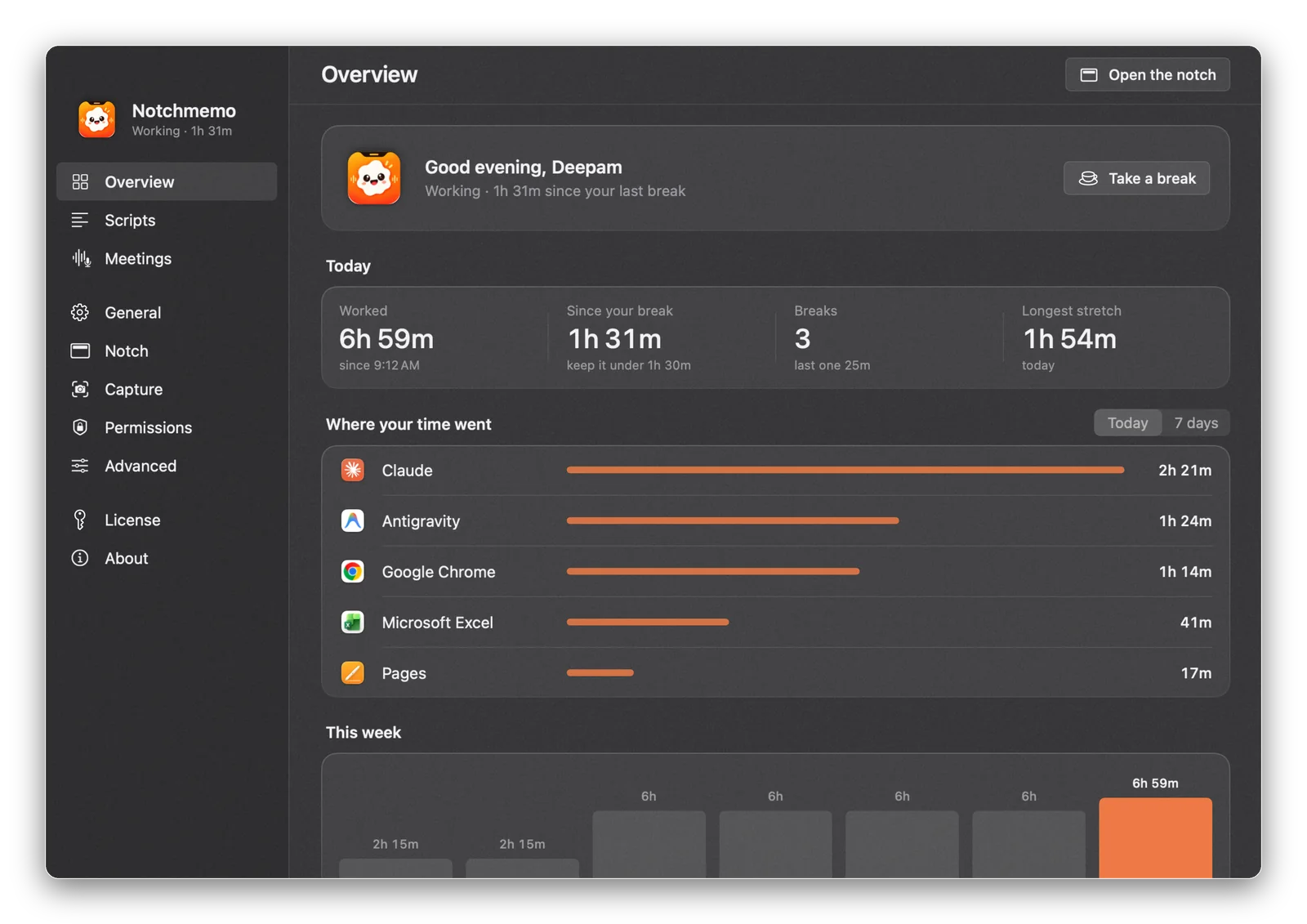
Click the gear in the notch or the menu bar item for the full app: dashboard, scripts, meetings and settings.
- Overview: today, where your time went, this week, what you captured.
- Five themes (Graphite, Midnight, Slate, Cream, Gray) with glass and fine grain; six accent colours that also tint the notch.
- Menu bar item with your work time (optional, Settings › Notch › Menu bar): click it to open the notch. Opens at login and stays out of the way.
How to use it. Settings › General › Appearance for theme and accent.
Use the AI you already trust
20 · Bring your own AI
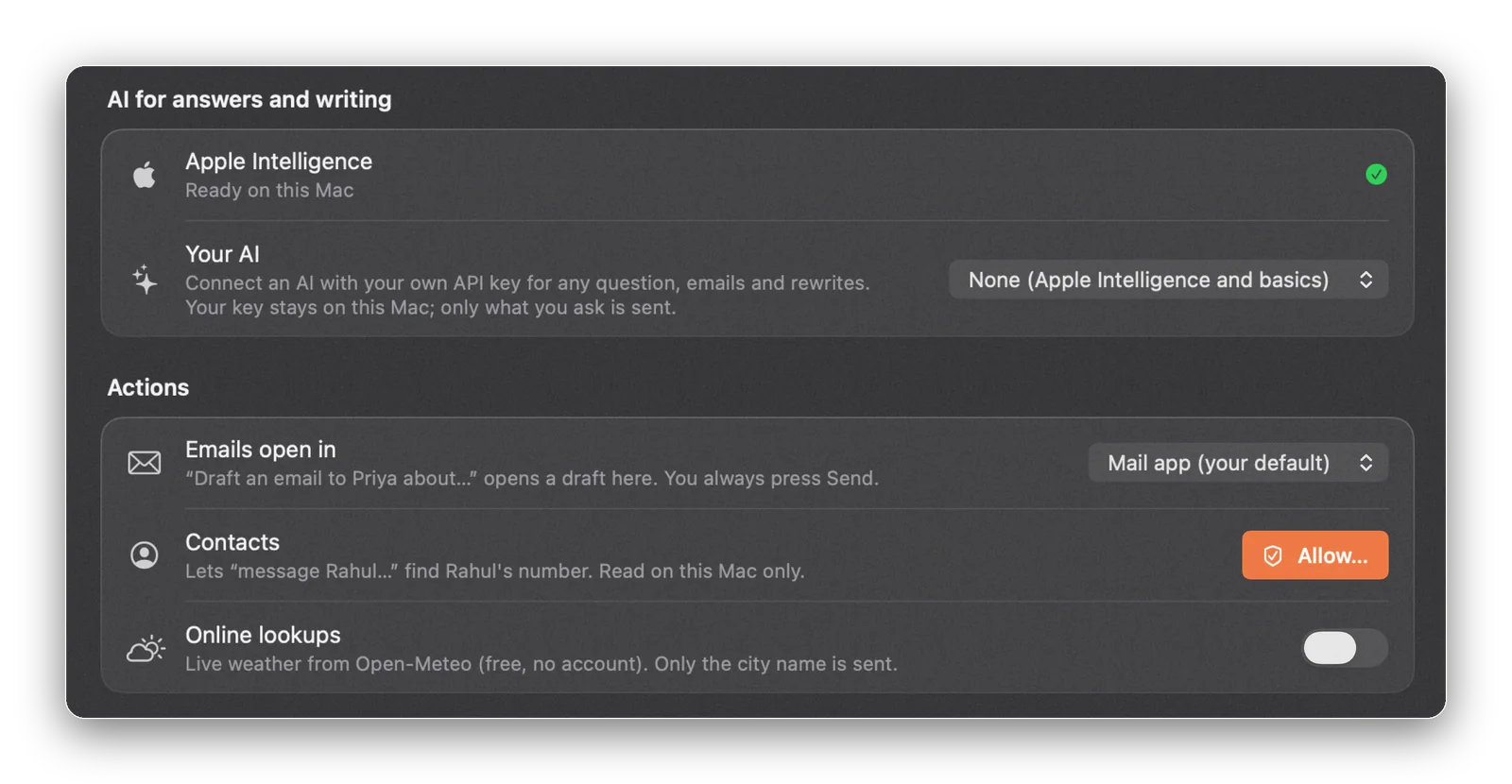
Apple Intelligence works out of the box where available. Or connect your own.
- Works with Claude, ChatGPT, Gemini, Sarvam AI, OpenRouter, or a local model (Ollama, LM Studio).
- Paste your API key once; it stays on your Mac. A Test button checks it. Pick any model, with sensible defaults.
- Only your question goes to the AI you chose.
How to use it. Settings › Notch › AI for answers and writing.
Read more
Each tool also has its own article on the blog, with more detail and real examples. The keys and the things you can say are collected on the shortcuts page.
- Install and first launchBuy or try, drag to Applications, say hello, allow once.
- PermissionsWhat each one unlocks, what macOS shows, how to fix it later.
- LicenseActivate in ten seconds, move to another Mac, error messages.
- Shortcuts and things to sayThe keys, and what to ask for while you hold fn.
- TroubleshootingIf something doesn’t work, the fix is probably here.