You come out of a call with a head full of decisions and a notepad with three words on it. Half an hour later you’re asking a colleague what was actually agreed. Here’s how to get automatic meeting notes on a Mac: a transcript, a summary and action items for every call, whether it happens in Zoom, Google Meet, Teams, FaceTime or Slack.
Why meeting notes are harder than they sound
A call has two sides. Your voice goes into the microphone. Everyone else comes out of your speakers or headphones. A note-taker that only listens to the microphone gets half the conversation, and the half it misses is usually the half you wanted written down.
Many call apps now offer their own notes, but they live inside that one app and often depend on who set up the call or which plan they’re on. If your week moves between Meet, Zoom and FaceTime, you end up with notes in three places, or in none.
How NotchMemo does it
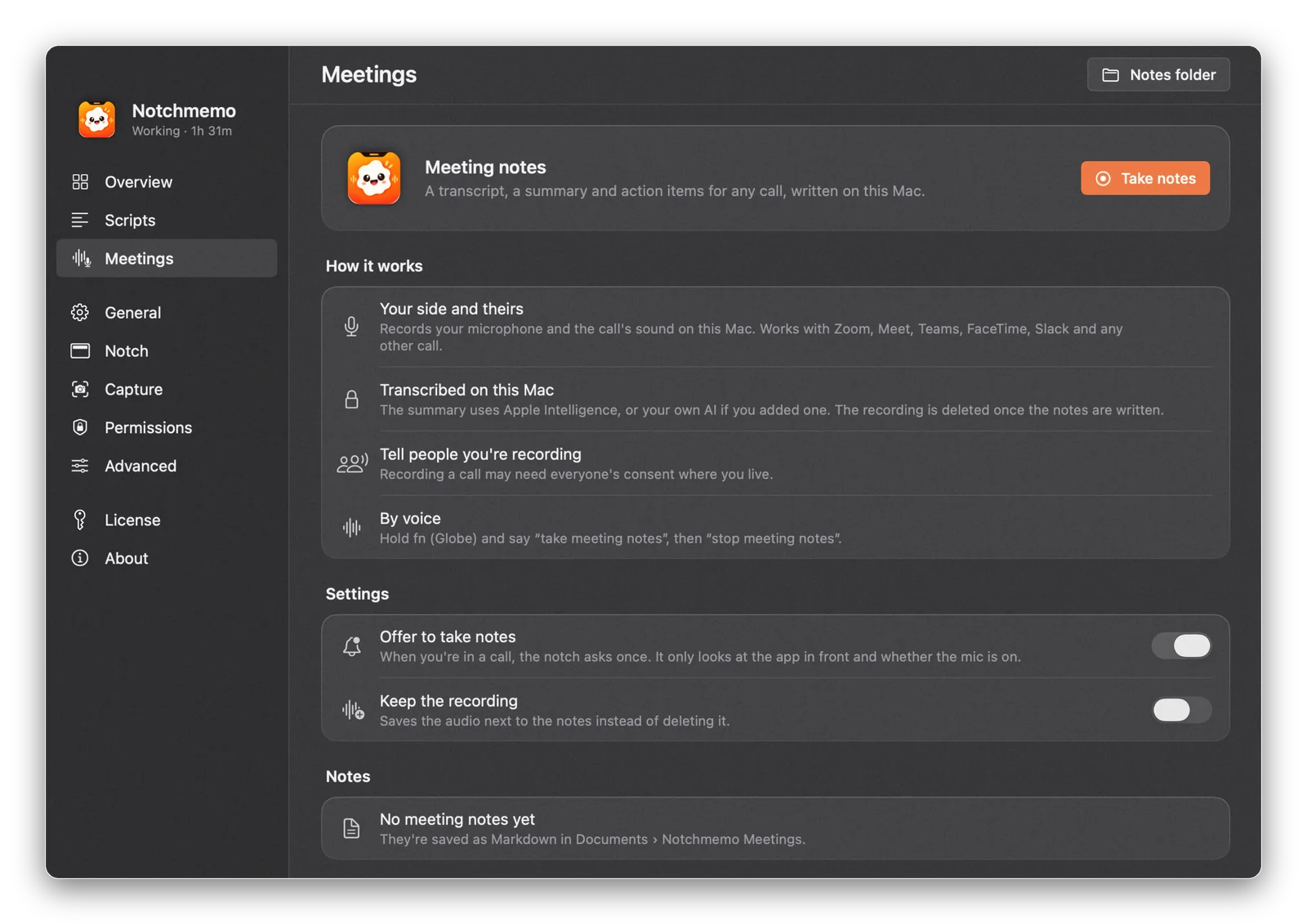
NotchMemo treats a call as a call, no matter which app it’s in. It records your side and theirs, transcribes on your Mac, and writes a summary with action items.
- Any call app. Zoom, Google Meet, Teams, FaceTime, Slack and any other call.
- Both sides, one recording. Your microphone and the call’s sound are recorded together, echo removed, on one clock.
- It offers, once. When you join a call, the notch asks if you’d like notes. A red dot sits in the notch while it records.
- Notes you can keep. A summary, key points and action items, saved as Markdown in Documents › Notchmemo Meetings.
- Three ways to start. Click Take notes on the Meetings page, accept the offer in the notch, or hold fn and say “take meeting notes”. Say “stop meeting notes” when you’re done.
Set it up once: let it hear the other side
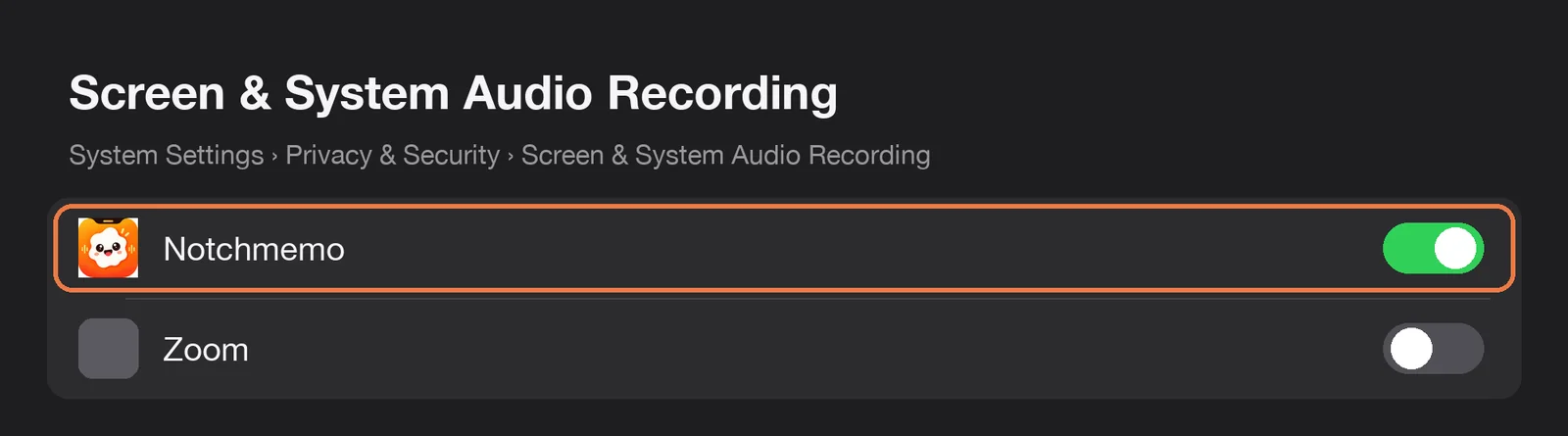
The first time you take meeting notes, NotchMemo asks for one extra permission: Screen & System Audio Recording. This is what lets it hear the other people on the call so they end up in the transcript. It’s audio only; nothing on your screen is recorded. Hearing the other side needs macOS 14.2 or later.
If your notes ever come back with only your voice in them, this permission is the fix. Open System Settings › Privacy & Security › Screen & System Audio Recording and allow NotchMemo. Our permissions guide explains every permission in plain words.
Where your notes go, and where they don’t
The recording is transcribed on your Mac and then deleted, unless you choose to keep it. The notes are plain Markdown files in your Documents folder, so they open in any editor and are yours to search, move or share.
The summary is written by Apple Intelligence on Apple silicon Macs with macOS 26 and Apple Intelligence on, or by your own AI if you connect one, such as Claude, ChatGPT, Gemini or a local model like Ollama. If you do connect a service, just the transcript goes to it for the summary, with your own key. Nothing else goes online.
Start with your next call
Join the call as usual, accept the offer in the notch, and have the conversation instead of typing through it. When it ends, the notes are waiting in Documents. Setup takes about five minutes.