If you’ve ever reached the end of a workday and wondered where it went, this one is for you. NotchMemo keeps a quiet record of your day on your Mac: when you were working, when you stepped away, and which apps had your attention. Here’s how the Today, Yesterday, Week and Apps views fit together, and how to read them.
Why the day feels shorter than it was
A workday is rarely one long block. It’s a few focused stretches, a lot of small switches, and gaps you don’t notice: a call that ran long, twenty minutes in Slack that felt like five. Memory smooths all of that over. By the evening you remember the big meeting and little else.
A record fixes it. Not a timesheet you fill in yourself, but something that simply notices whether you’re at the Mac and what’s in front of you, then shows it back to you.
Today: every five minutes as a dot
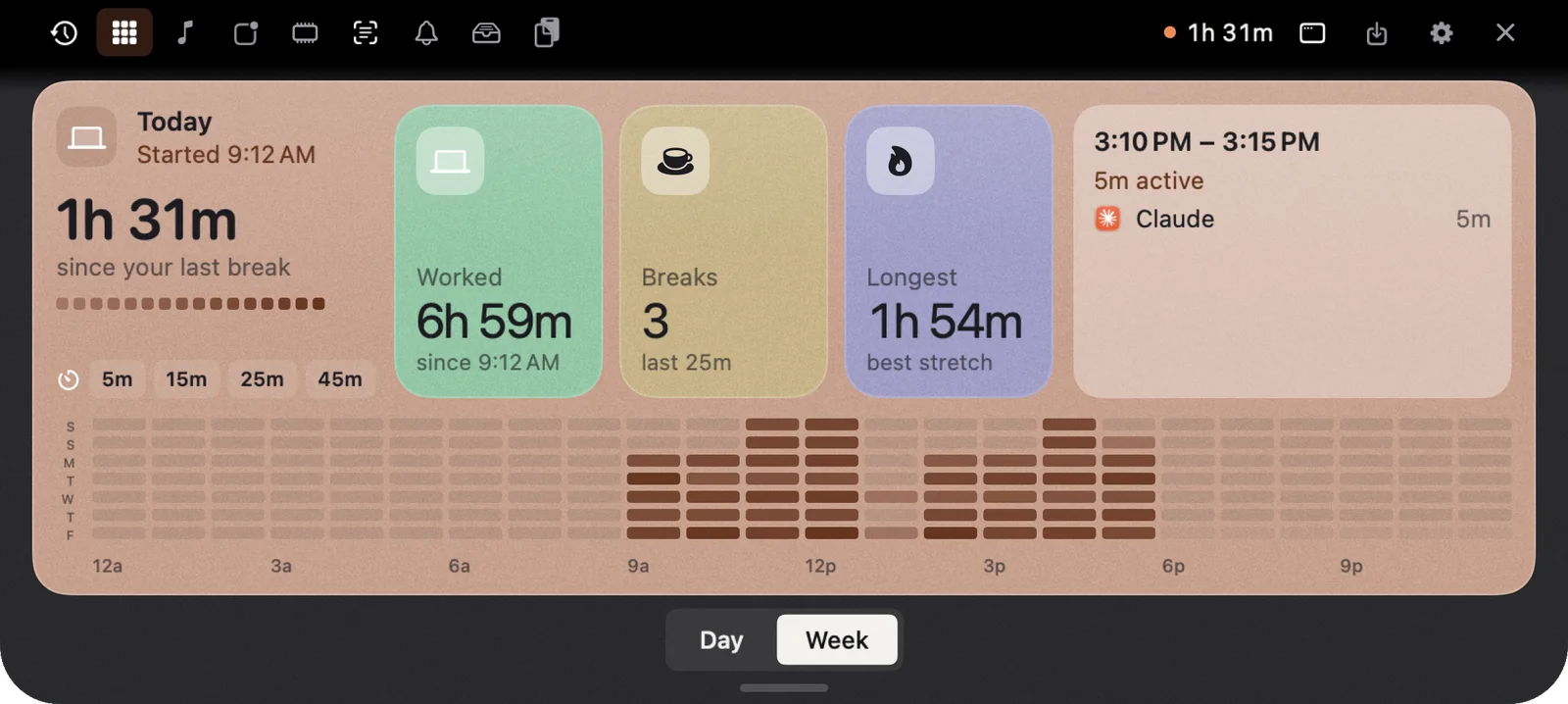
Click the notch and open the Today tab. The day is drawn as a strip of dots, one for every five minutes. Hover over any dot and you see the app you were in and the time. You also get three numbers: worked time, breaks, and your longest stretch of uninterrupted work.
Patterns are easy to spot. A long run in one app is a focused stretch. A patch of quick changes is a stretch of switching. A gap is a break, whether you planned it or not.
Yesterday and the week
Use the ‹ › picker to step back one day at a time, up to 30 days. Yesterday has the same strip and the same numbers, so you can compare a good day with an ordinary one and see what was different.
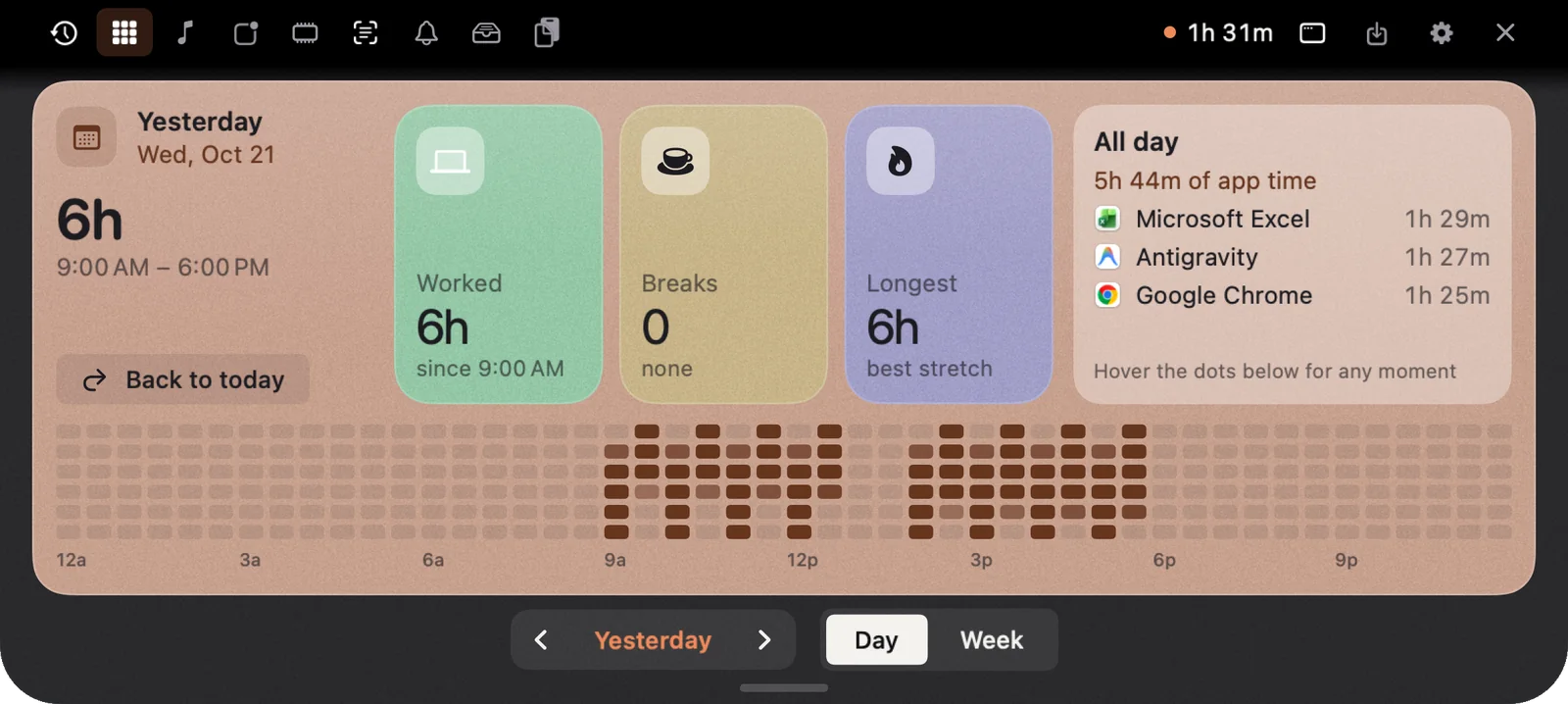
Switch from Day to Week and you get seven days side by side. It’s the quickest way to see the shape of a week: which days were long, which were broken up, and whether the quiet Friday was really as quiet as it felt. Click any day to open it.
Apps: where the time actually went
The Apps tab answers the question the dots raise. Every app you used today is listed with its real icon, the time you spent in front of it, and how many times you switched to it. Beside each one is an hourly strip, so you can see that you were in Excel all morning and in Chrome after lunch.
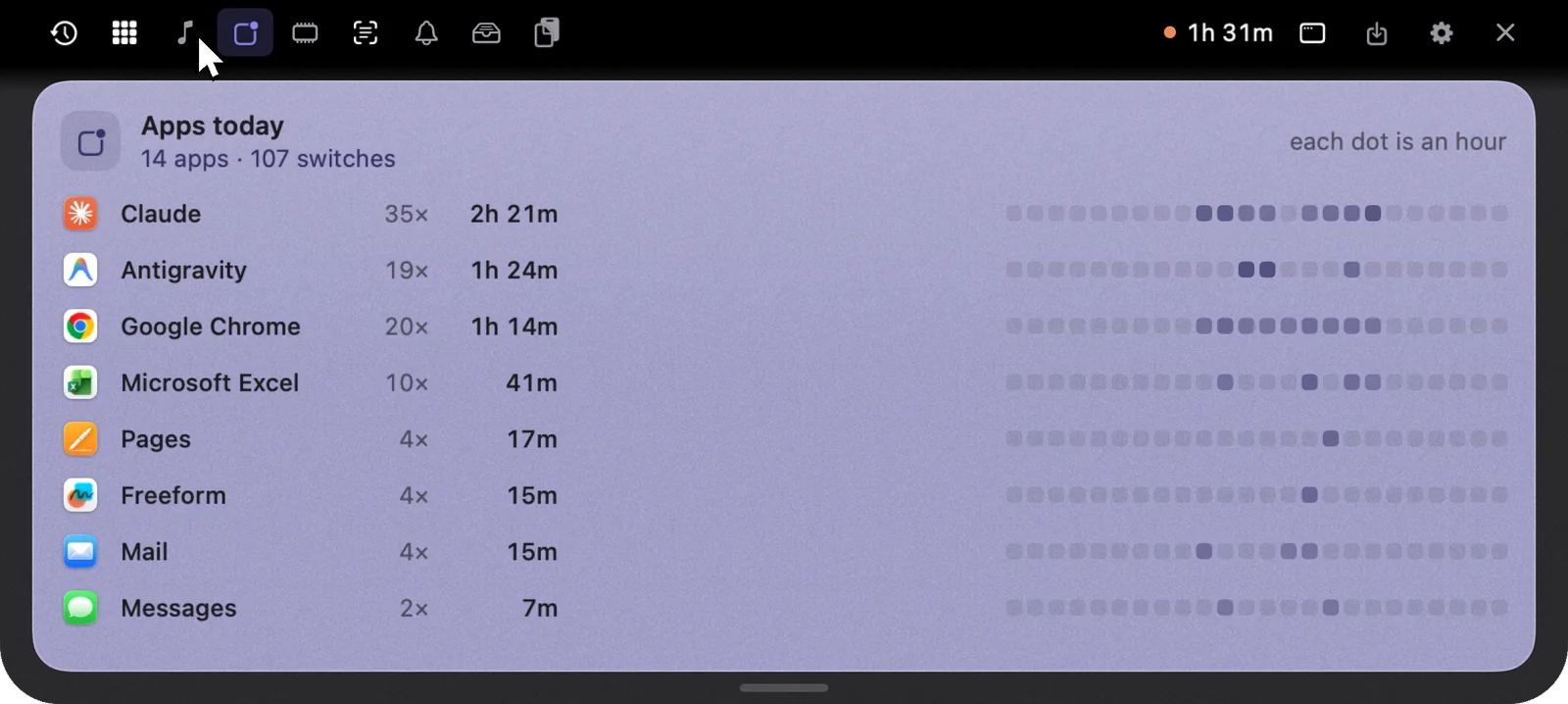
The switch count is often the surprising number. Twenty minutes in a messaging app is one thing. Forty switches into it is another.
How NotchMemo measures it
All of this comes from one simple signal in NotchMemo, and it’s worth being clear about what that signal is.
- Only whether you’re there, and which app is in front. NotchMemo looks at your idle time and the app in front. That’s all it needs.
- No keystrokes, no screen contents. It never records what you type or what’s on your screen.
- Away means away. No keyboard or mouse for a while counts as a break, so lunch doesn’t show up as work.
- It stays on your Mac. Your activity lives in a database on your Mac. Nothing is uploaded. No account, and no analytics in the app.
- You can just ask. Hold fn and say “How long have I worked today?” or “How many breaks did I take?” and the answer appears in the notch.
Read your day without judging it
The point isn’t to feel bad about the switching. It’s to see it. Once you know your best hours are before eleven, you can protect them. Once you see a day with no breaks, you can take one tomorrow. Click the notch, look for a few seconds, press Esc. Everything else that lives in there is in the features guide.