“Kal meeting hai at 10, please confirm kar dena.” If that sentence sounds perfectly normal to you, you already know the problem with dictation. You don’t speak Hindi or English. You speak both, often in the same breath. Here’s how to get Hinglish dictation on a Mac that types what you said, in Roman letters or Devanagari, in any app.
Why most dictation can’t keep up
Built-in dictation works one language at a time. You can set it to Hindi or to English, and you can switch between them, but it expects each sentence to stay in its lane. Hinglish doesn’t. Say “bhai, send me the file by 5” and a one-language model has to guess, and it usually guesses wrong.
The result is text you retype anyway, which takes away the whole point of talking instead of typing.
How NotchMemo does it
NotchMemo has a Hinglish mode. Turn it on and talk the way you really talk. It understands Hindi and English mixed in one sentence and types it just right.
- Mixed in one sentence. Hindi and English together, the way you actually say them.
- Your script, your choice. Choose whether Hinglish is typed in Roman letters or Devanagari.
- Everywhere you type. WhatsApp, Slack, Mail, Notes, browsers: put the cursor in a text field, hold fn, speak, release.
- Commands stay in English. Questions and commands to NotchMemo are always understood in English, so turning Hinglish on doesn’t change how you ask it to do things.
- Powered by Sarvam AI. Hinglish uses Sarvam’s Saaras v3 speech model with your own API key.

Turning it on
- Get an API key from Sarvam AI.
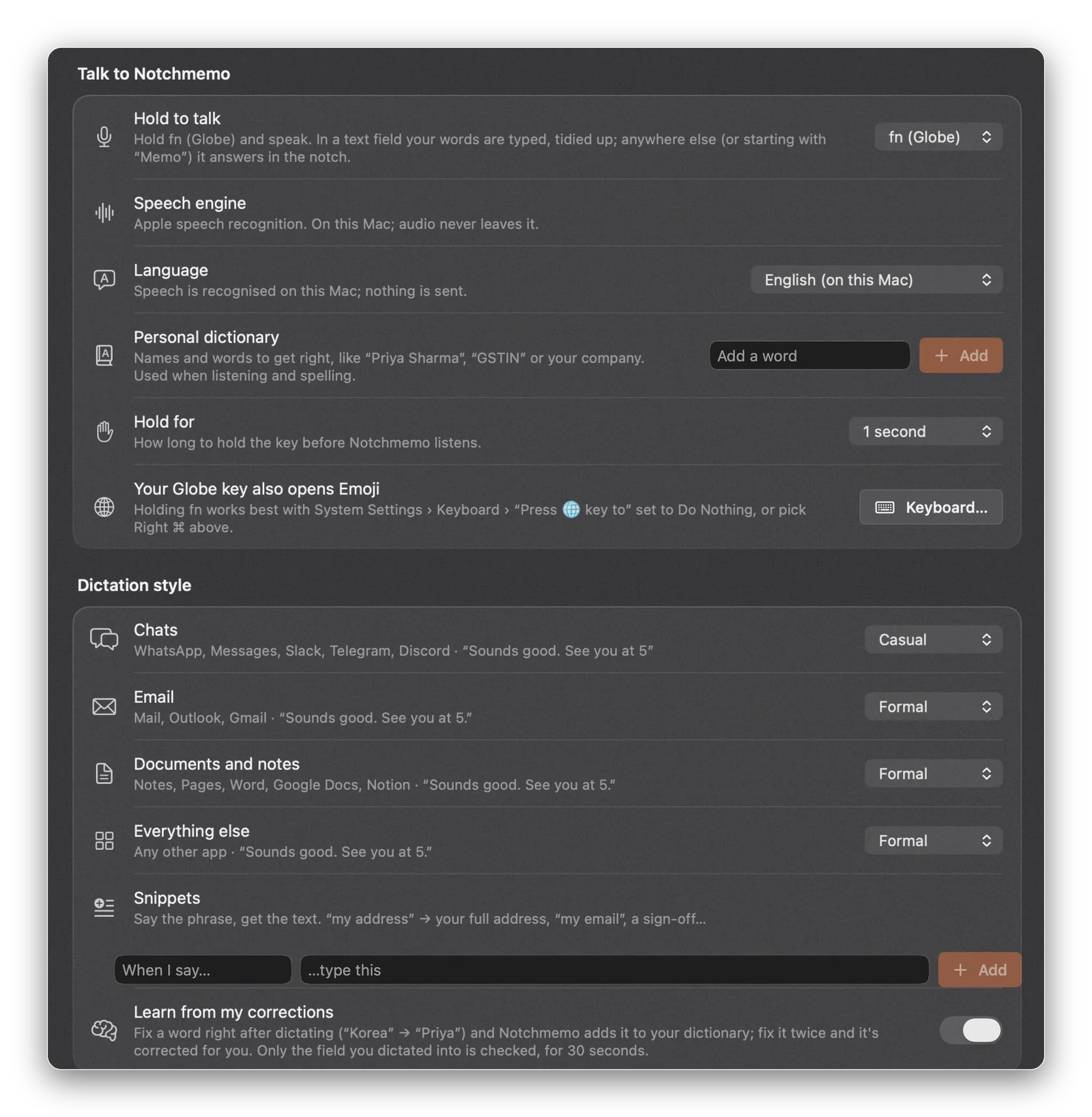
- In NotchMemo, open Settings › Notch › Talk to Notchmemo.
- Under Speech engine and Language, choose Hinglish and paste your Sarvam API key.
Hinglish is one of the choices under Speech engine. The rest of dictation is set up next to it, in Settings › Notch › Dictation style: a tone per app (relaxed in chats, polished in email), snippets that expand a short phrase into your full address or sign-off, and a personal dictionary for names it should always spell your way.
If holding fn opens the Emoji picker on your Mac, you can change the talk key to Right Command, Right Option or Control. Our shortcuts guide shows how.
What goes online, and when
Normally your speech is recognised on your Mac by Apple’s on-device speech recognition and is never sent anywhere. Hinglish is the one exception, and you choose it: while Hinglish is on, what you say is sent to Sarvam AI with your key. Turn it off and speech never leaves your Mac again.
That’s the whole list. The app has no account and no analytics, and nothing else goes online unless you turn it on.
Say it the way you’d say it
Try it on your next WhatsApp message. Hold fn, say it exactly as you would to a friend, and let go. The mix of Hindi and English you’ve been translating into typed English for years can finally just be typed.