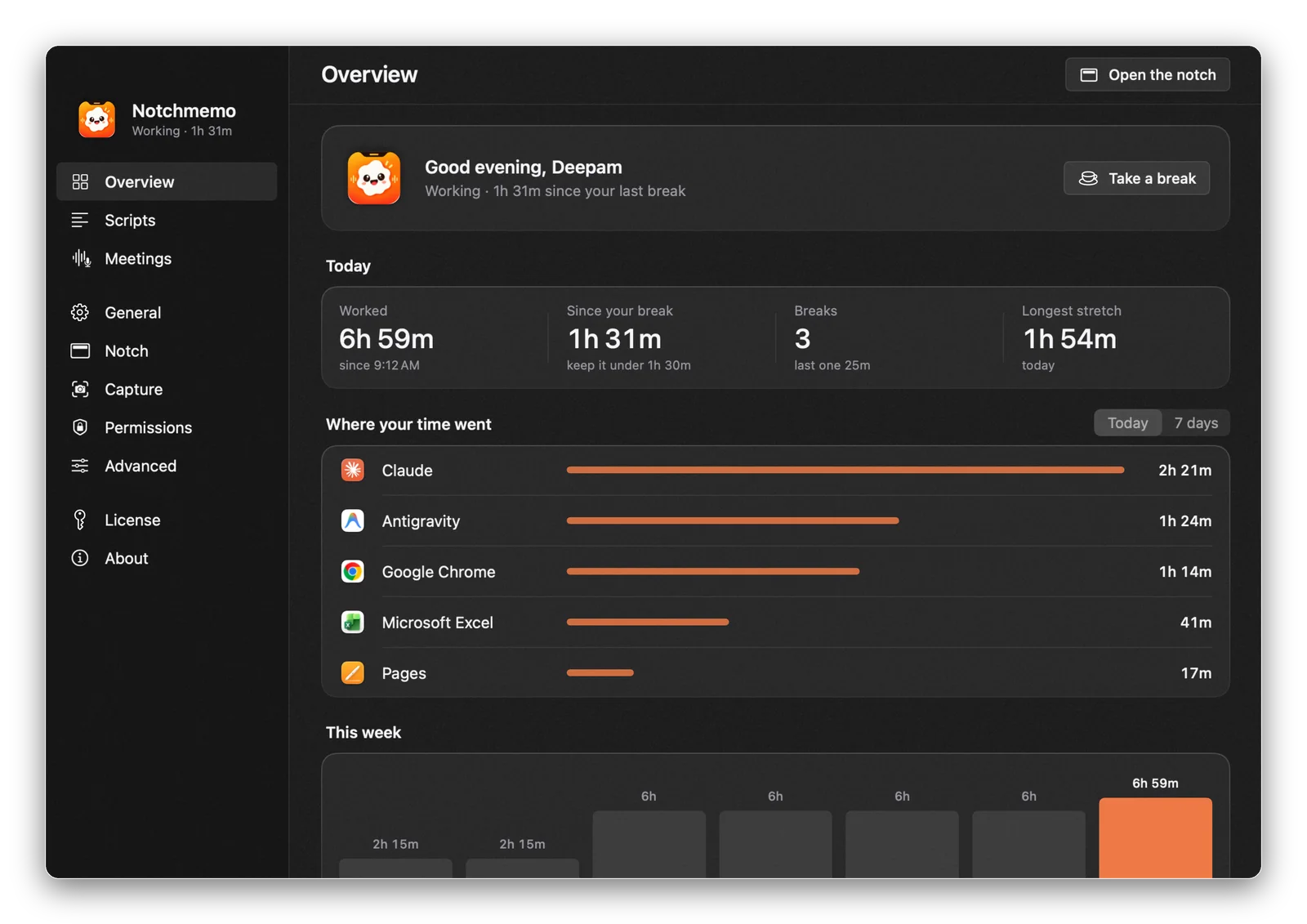
An app that sits in your notch all day should feel like yours. NotchMemo gives you five themes, six accent colours that tint the notch itself, a small companion called Memo you can turn up or down, and the choice of which AI answers your questions, if any. Here’s where each setting lives.
Themes and accents
The app window comes in five themes: Graphite, Midnight, Slate, Cream and Gray, each with glass and a fine grain. Pick a dark one for late evenings or Cream for a bright desk.
Accent colours go further. There are six, and the one you choose also tints the notch, so the panel below your camera matches the app. Both live in Settings › General › Appearance.
One more small choice: a menu bar item that shows your work time. It’s optional, in Settings › Notch › Menu bar, and clicking it opens the notch.
Memo, as much or as little as you like
Memo is the soft little cloud with a face that hangs from the notch. It blinks, looks around and follows your pointer. Every hour it waves hello with how much you’ve worked. Hover over it and it blushes and giggles. Twice a day it checks in on your mood, with emoji answers that are kept on your Mac.
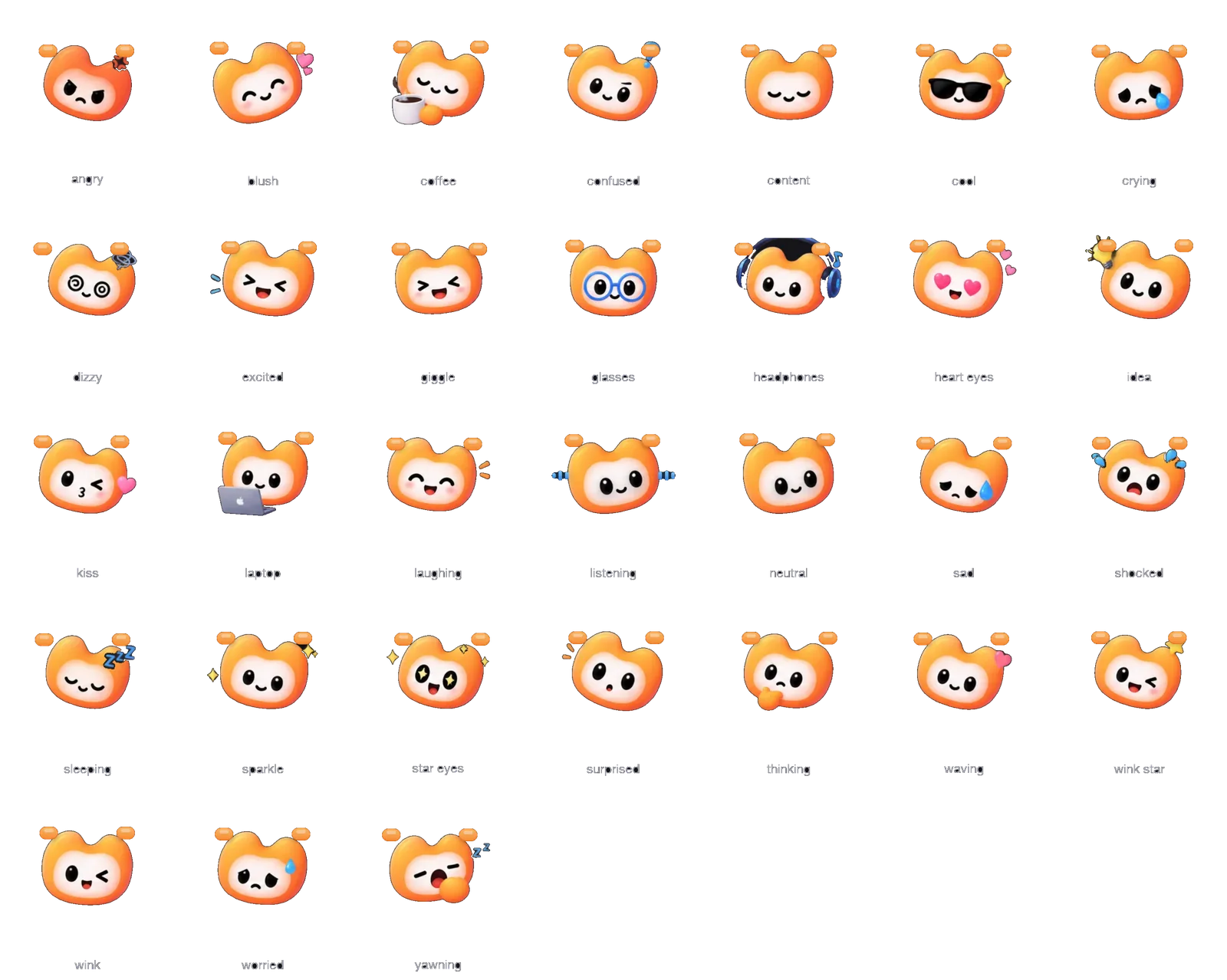
Not everyone wants a companion, and that’s fine. Memo has three modes: All day, Only with news, or Off. Choose in Settings › Notch › Memo, along with how often it checks in.
Your own AI, or none
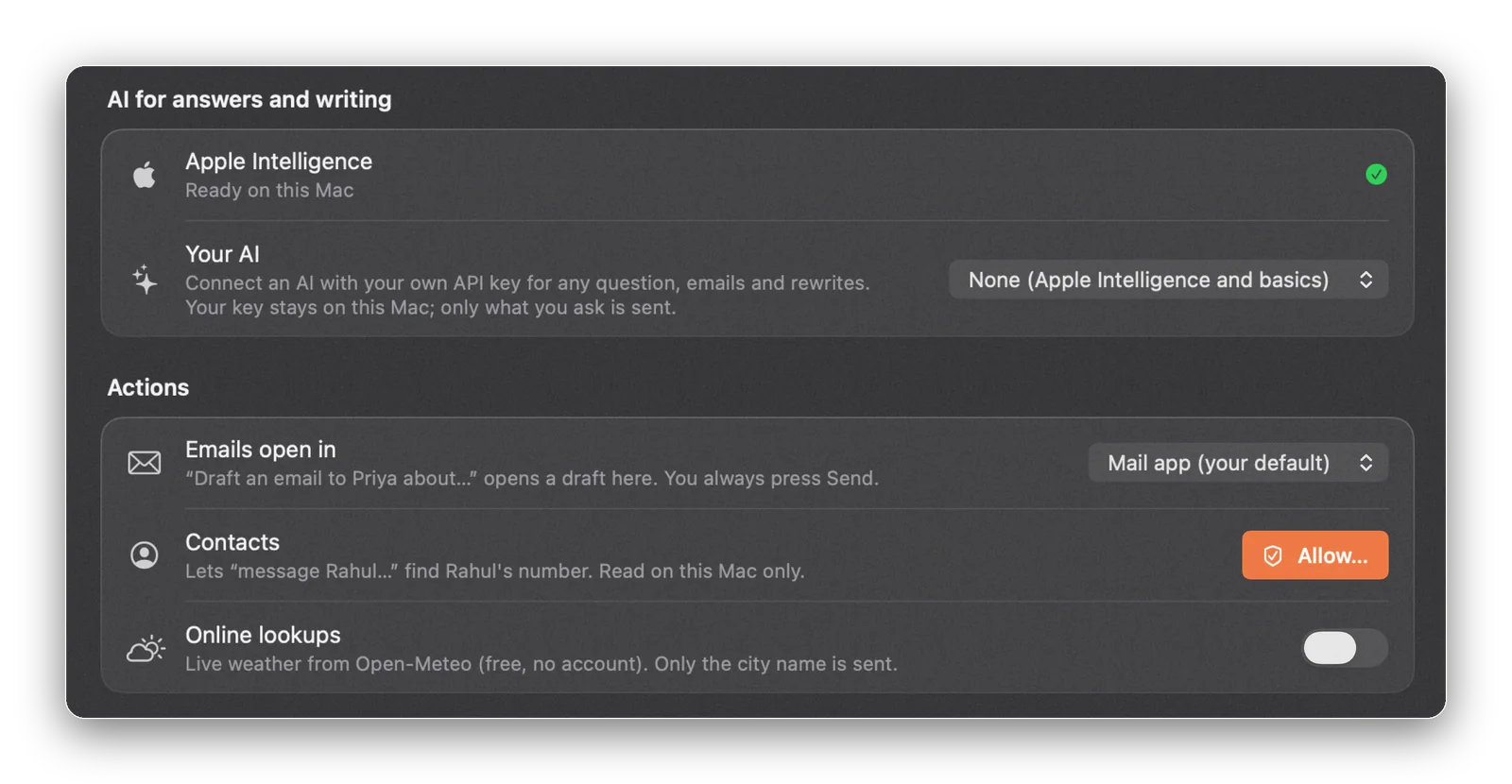
Where Apple Intelligence is available, it works out of the box. You don’t need it, though: quick answers, actions and dictation all work without it. For open questions, connect the AI you already trust.
How NotchMemo does it
Everything here is a setting in the NotchMemo app, a click away from the gear in the notch.
- Pick a theme and accent. Settings › General › Appearance: five themes, six accents, and the notch takes the same colour.
- Set Memo’s mode. Settings › Notch › Memo: All day, Only with news or Off, and how often it checks in.
- Choose your AI. Settings › Notch › AI for answers and writing works with Claude, ChatGPT, Gemini, Sarvam AI, OpenRouter, or a local model such as Ollama or LM Studio.
- Paste your key once. It stays on your Mac, and a Test button checks it. Pick any model, or keep the sensible default.
- Only your question travels. When you ask something, only that question goes to the AI you chose. Everything else stays on your Mac, with no account and no analytics in the app.
Settle in
Spend a minute on these the day you install it, and NotchMemo stops feeling like someone else’s app. The rest of what it does, from the Shelf to the teleprompter, is in the features guide.