A notification slides in at the top right of your screen, you glance at it, and it’s gone. Was that the verification code you were waiting for, or a message? Here’s where macOS keeps the notifications you missed, where it doesn’t, and how NotchMemo gives you a searchable history of what you saw, right in the notch.
Where macOS keeps them
Notifications you haven’t dealt with wait in Notification Center. Click the date and time in the menu bar, or swipe left from the right edge of your trackpad with two fingers, and they’re listed there, grouped by app.
The catch is what happens when you clear one. Dismiss a notification, or clear an app’s group, and it’s gone for good. There’s no search, and no way to look back at what arrived yesterday.
The ones that matter most are short-lived
Verification codes are the clearest example. One arrives while you’re in the middle of something else, and by the time you need it you have to go back to the app and look. iPhone notifications that come through your Mac disappear just the same.
What you want is simple: a list of what you saw, a search box, and a way to copy a code without opening anything.
How NotchMemo does it
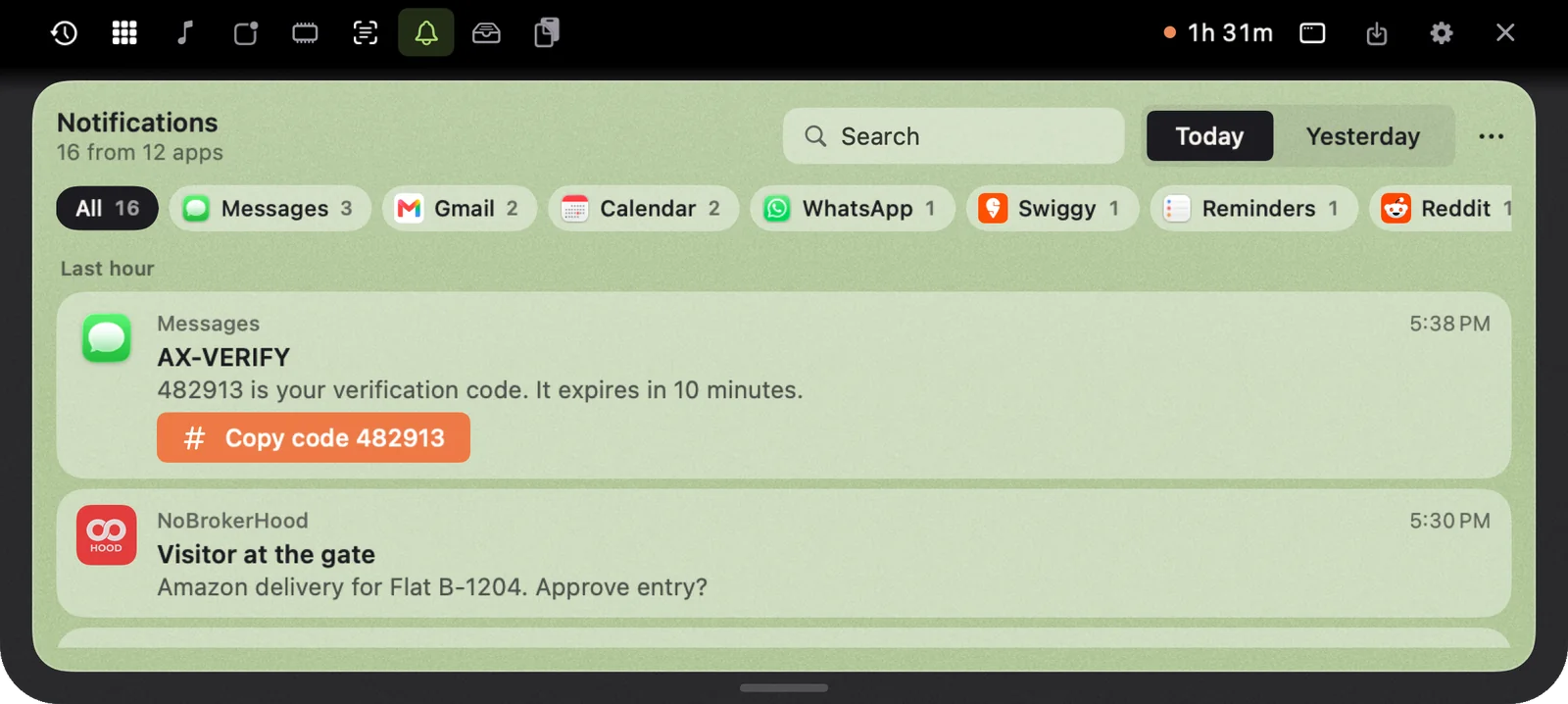
NotchMemo keeps a history of the notifications you saw. Open the notch and go to the Notifications tab.
- Today and Yesterday, searchable. Filter by app or type a word, and the one you missed is back.
- Codes are one tap. A verification code gets a Copy code button, so you never retype six digits.
- Real app icons. iPhone notifications that come through your Mac show the app’s own icon too, if you allow NotchMemo to fetch icons. Otherwise a coloured letter stands in.
- Leave apps out. Right-click a notification and choose Don’t keep notifications from that app.
- Kept on this Mac for 30 days. Nothing is uploaded, and there’s no account and no analytics in the app.
Two things to know
Notification history needs the Accessibility permission, which NotchMemo asks for at first launch. If you skipped it, turn it on in System Settings › Privacy & Security › Accessibility. Our permissions guide walks through each permission and what it unlocks. NotchMemo doesn’t record your screen or your keystrokes; it only knows whether you’re at the Mac and which app is in front.
Fetching iPhone app icons is the one part that uses the internet, and only if you say yes. NotchMemo looks the app’s icon up on the App Store. Say no, and you get a coloured letter instead.
Stop chasing codes
Once what you saw stays findable, you stop worrying about missing it. A code arrives, you finish your sentence, then you open the notch and copy it. Yesterday’s message from a friend is still there when you remember to reply. Small things, but they add up to a calmer day.