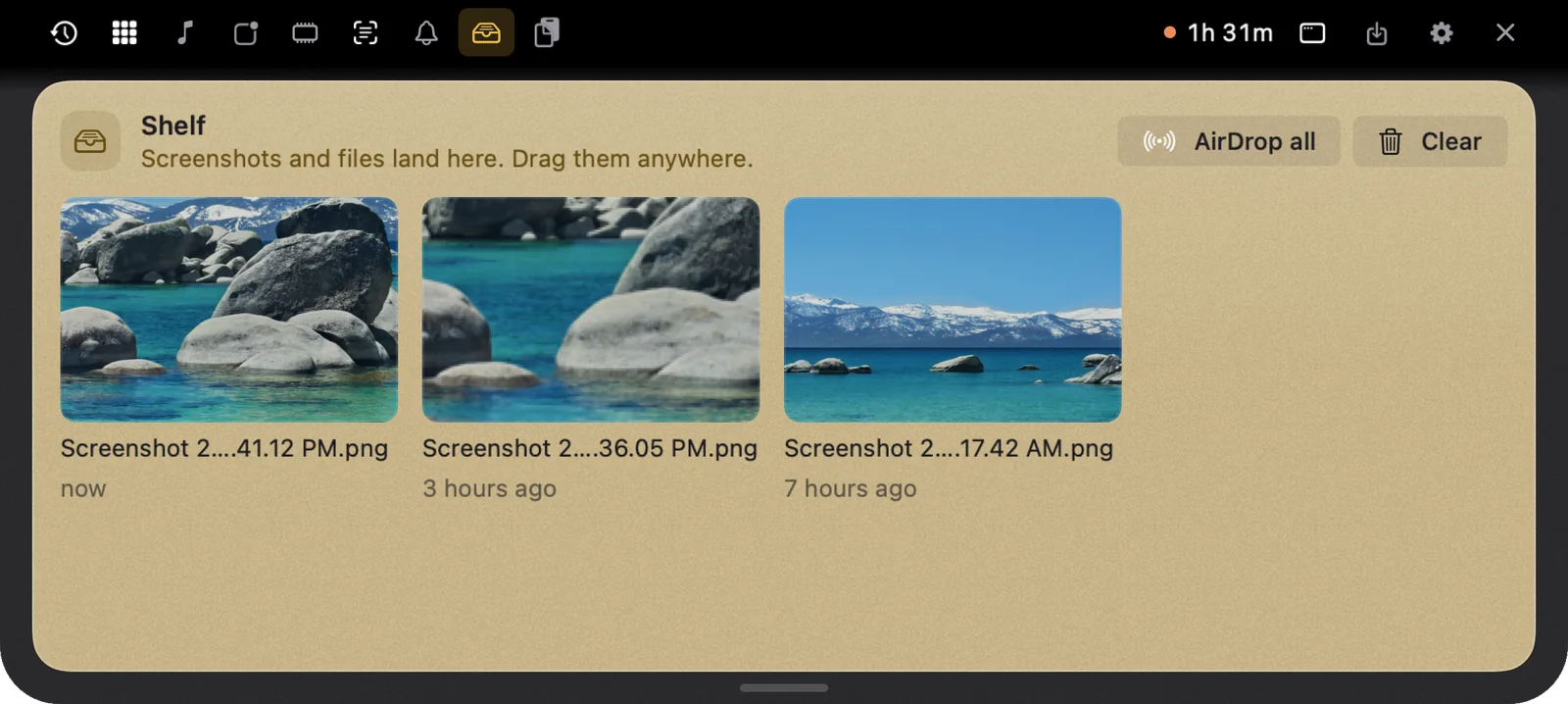
You press ⌘⇧4, drag over the part of the screen you want, and the screenshot lands on your Desktop. Then you go and find it, drag it into a message, and tidy the Desktop up later. Here’s how NotchMemo shortens that to one step: every screenshot arrives in the notch, already copied, with a Shelf to keep it on and AirDrop one drag away.
What macOS does with a screenshot
On a Mac, ⌘⇧3 captures the whole screen and ⌘⇧4 lets you pick an area. The image is saved to your Desktop by default, and a small floating preview sits in the corner for a few seconds so you can mark it up or drag it somewhere.
That works, but the common case is simpler: you want the screenshot in the thing you’re typing, right now. That means waiting for the preview, or going to the Desktop, or remembering to hold ⌃ so it copies instead of saving. Each one is a small detour.
A screenshot that’s already copied
With NotchMemo, you take screenshots the way you always have. Press ⌘⇧4 or ⌘⇧3 and the screenshot pops into the notch, already on your clipboard. Switch to your message, press ⌘V, and it’s there.
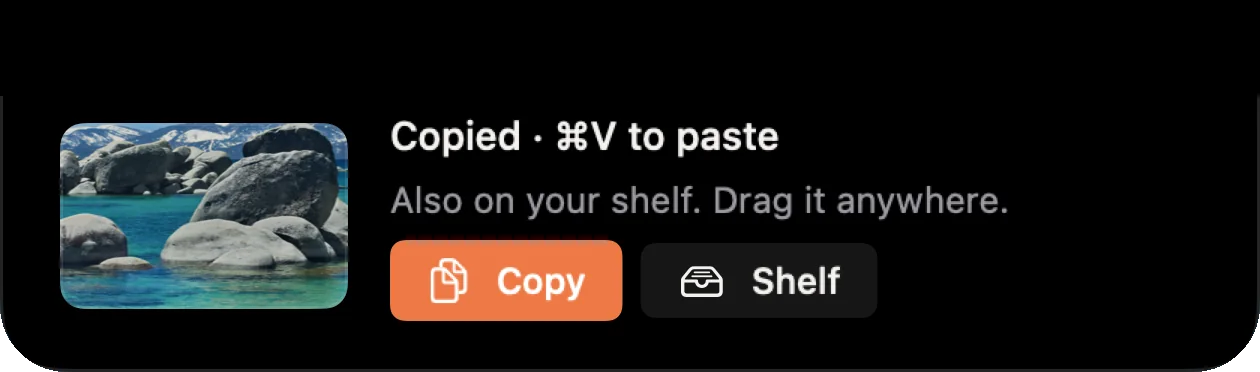
If you’d rather not see the macOS floating preview at all, turn on instant mode. It switches the preview off, so screenshots arrive in the notch right away.
The Shelf, for later
Every screenshot is also kept on the Shelf. Open the notch, pick it up, and drag it into any app, any time. Other files work the same way: drag one onto the notch and two drop zones appear, Keep on Shelf and AirDrop.
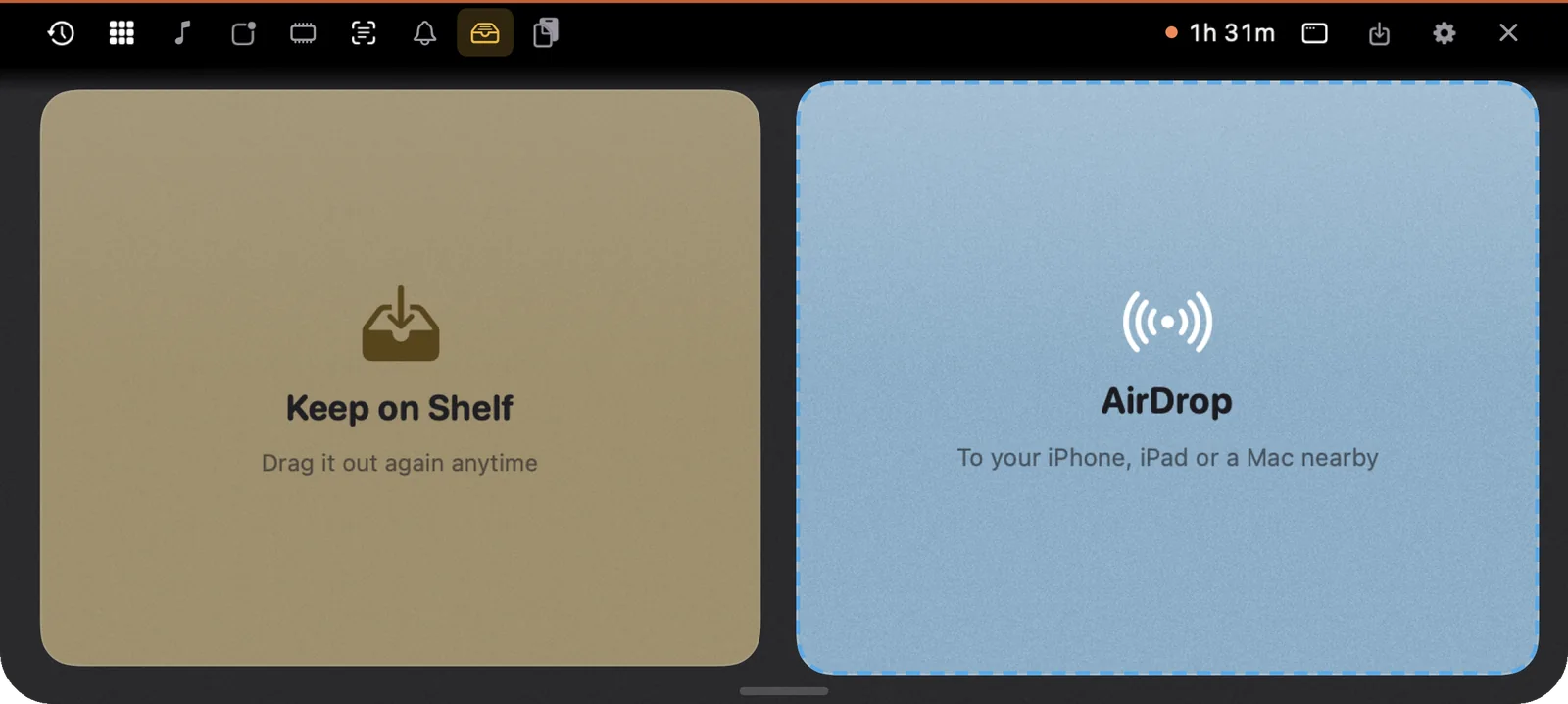
Drop on Keep on Shelf and the file waits in the notch until you need it. Drop on AirDrop and it goes to your iPhone, iPad or a Mac nearby. When the Shelf has a few things on it, AirDrop all or Clear takes one click.
How NotchMemo does it
- Your shortcuts don’t change. ⌘⇧4 and ⌘⇧3 work as before; the result lands in the notch, ready to paste with ⌘V.
- Instant mode skips the preview. Turn it on in Settings › Capture › Screenshots and screenshots arrive right away.
- The Shelf holds things. Screenshots and dropped files stay there until you drag them out or clear them.
- AirDrop is a drop zone. Drag a file onto the notch and drop it on AirDrop to send it to your iPhone, iPad or a Mac nearby.
- It stays on your Mac. NotchMemo reads the folder where your screenshots are saved. Nothing is uploaded.
One permission to set up
To catch screenshots, NotchMemo needs access to the folder they’re saved in, your Desktop by default. The first time, macOS asks “Notchmemo would like to access files in your Desktop folder.” Click Allow. If you skipped it, turn it on later in System Settings › Privacy & Security › Files and Folders › Notchmemo › Desktop. Our permissions guide explains what every permission is for.
Then take a screenshot and paste it. That’s the whole workflow now.