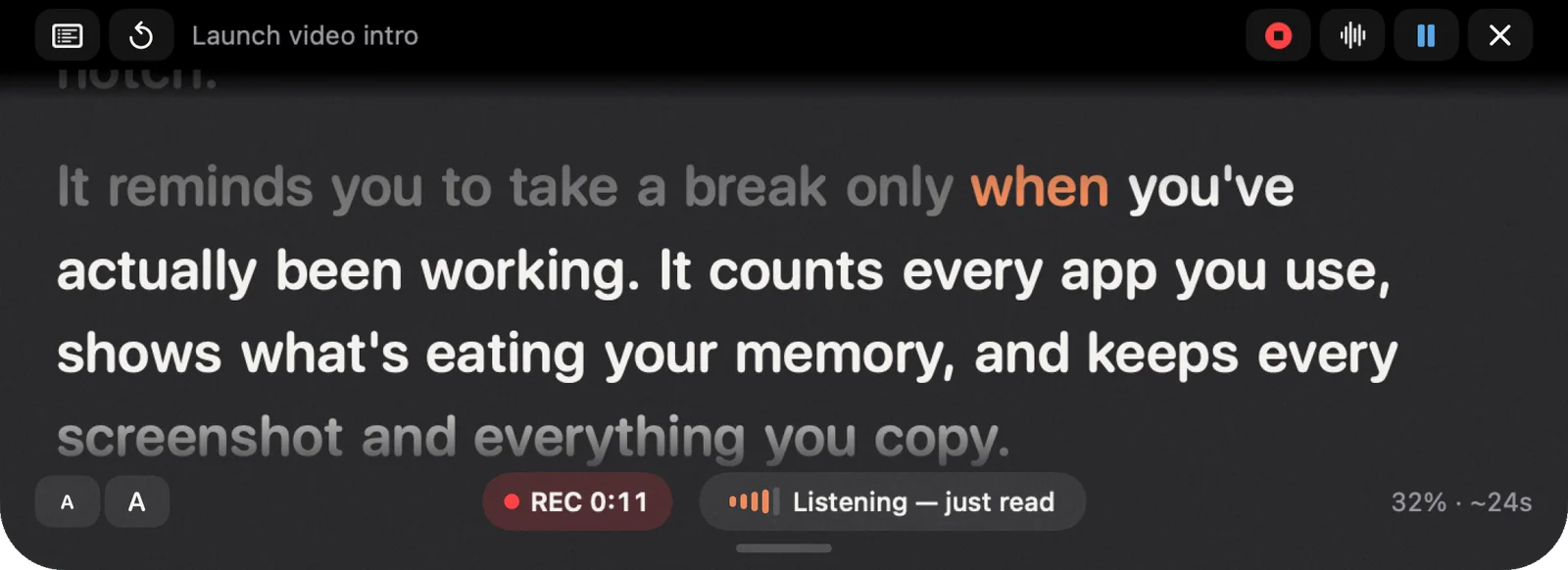
Recording yourself on a Mac has one awkward part: where to look. Your notes sit in a window below the camera, your eyes drift down, and the video shows it. NotchMemo puts a teleprompter in the notch, right under the camera, and scrolls it as you speak. Here’s how it works and what it needs.
Why the notch is the right place
On a MacBook, the camera is inside the notch. Text that appears directly beneath it is as close to the lens as text can get, so reading it looks like eye contact. A separate window never gets that close.
A teleprompter also has to keep up with you. Read faster and it should move faster; pause and it should wait. A fixed speed is fine for a scripted read, but it fights you the moment you ad lib. That’s what following your voice means: the script moves at the speed you actually read, and waits when you stop.
Write it, press Start, read
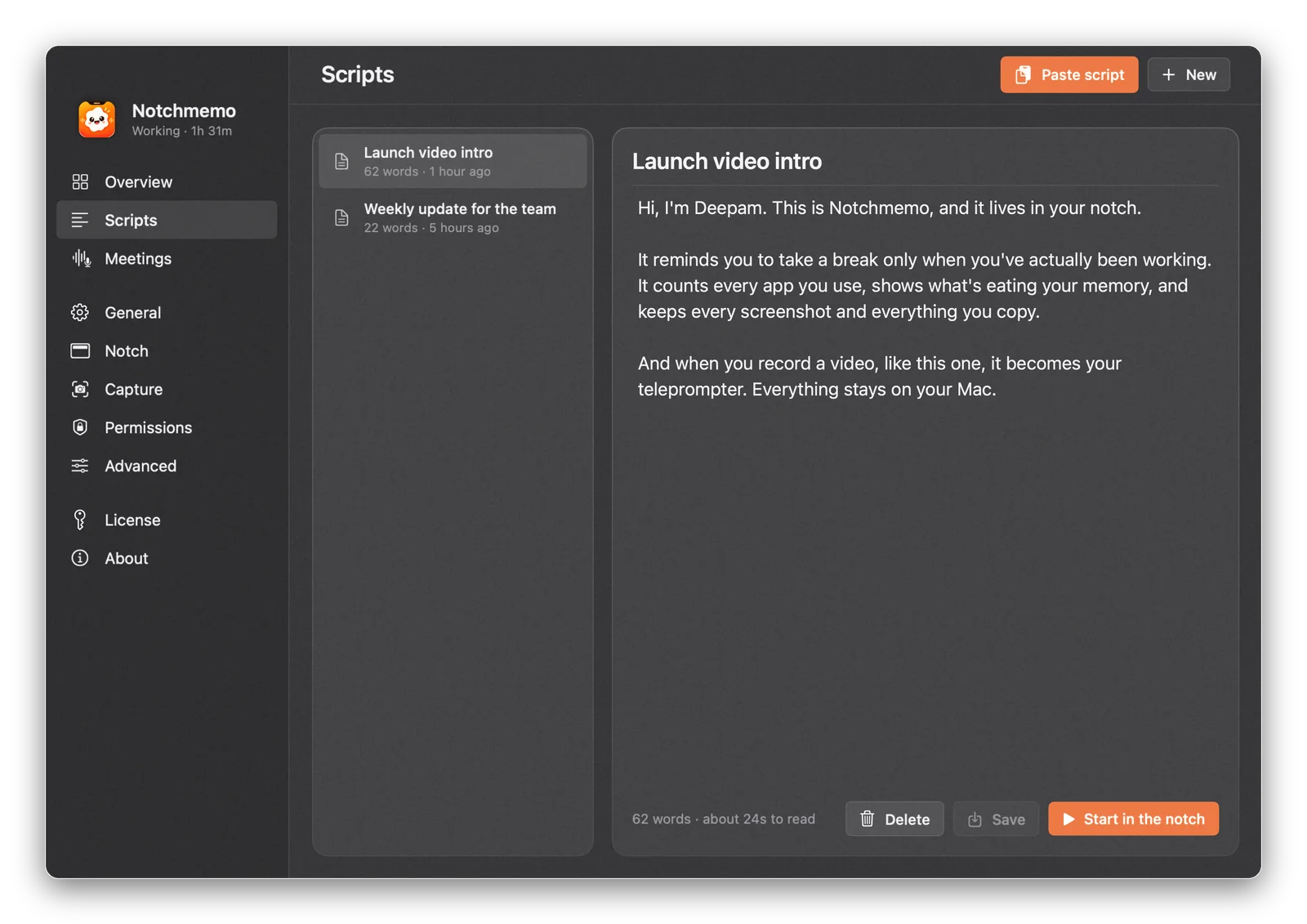
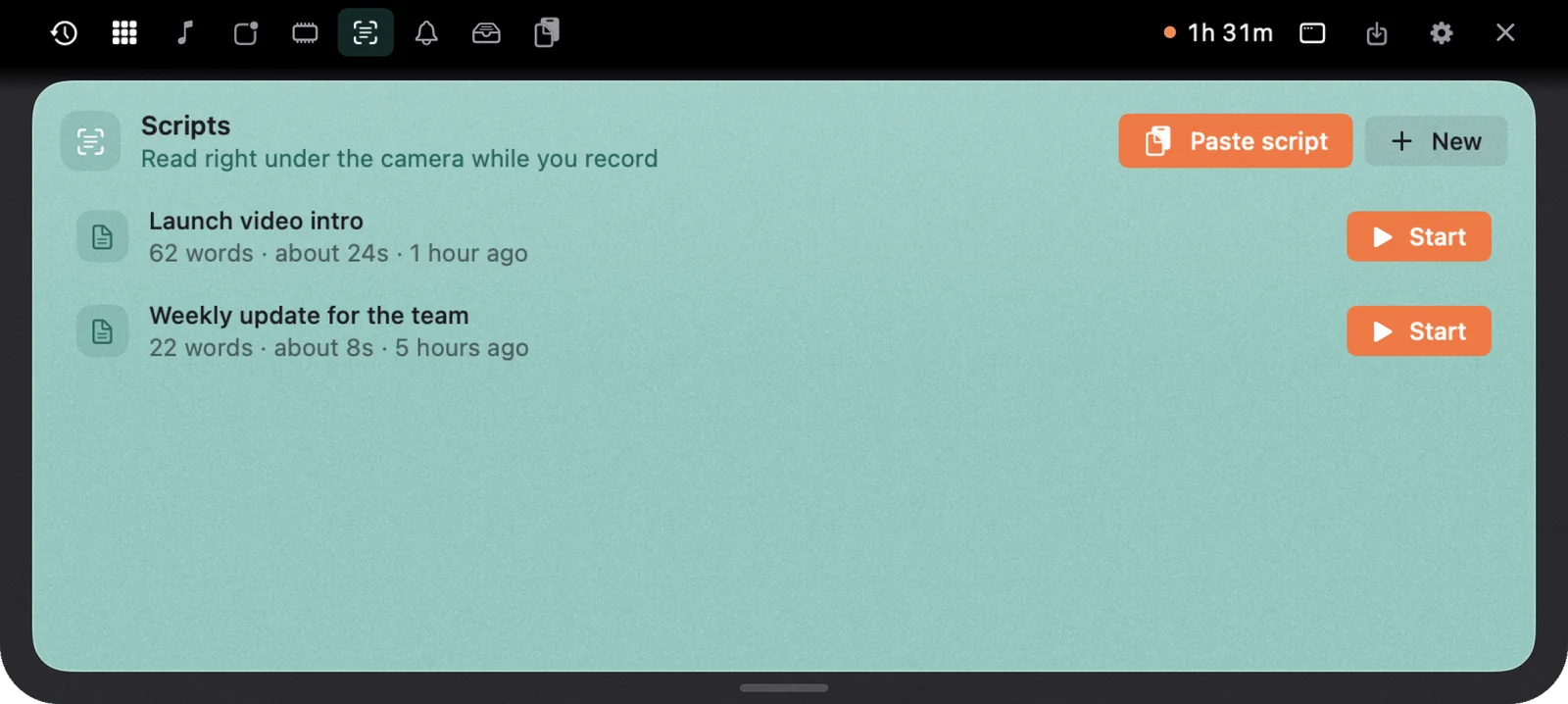
Scripts live on the Scripts page of the NotchMemo app. Paste or write your script there, then press Start. Or open the notch, go to the Scripts tab, and start one from there.
The script appears in the notch and scrolls while you read. Space pauses it, the arrow keys move through it, and Esc stops. When you’re done, the take is already saved.
How NotchMemo does it
- It follows your voice. The script scrolls as you speak, using on-device speech recognition. Prefer a steady speed? That works too.
- It records while you read. A voice note is saved to the Shelf and to Movies › Notchmemo, so a take is never lost.
- It stays out of your video. The teleprompter is hidden from screen recordings, so the script never shows in what you capture.
- A sync clap, if you want one. Turn it on to line up audio and video in the edit.
- Keyboard control. Space to pause, arrows to move, Esc to stop.
What it needs
Following your voice uses the Speech Recognition permission, and the voice note uses the Microphone, only while you use them. Speech is turned into text on your Mac, so nothing you say is uploaded. Both are asked for at first launch, and the permissions guide shows where to turn them on later.
A good first script
Keep it short and write it the way you talk. Read it aloud once before you record, and you’ll notice the sentences that don’t sound like you. Fix those, press Start, and look at the camera. The words will be right there.
If you record a few takes, each voice note waits on the Shelf, so you can drag the best one straight into your editor without hunting through folders.