
Press a volume key on a Mac and a box appears in the middle of your screen, right on top of whatever you were reading. It’s been there so long most of us stopped noticing it. Here’s a calmer volume and brightness HUD for your Mac: a slim bar that slides out of the notch, moves exactly like the one it replaces, and gets out of the way.
What the default HUD gets wrong
The built-in overlay (a heads-up display, or HUD) does its job. It shows the level and fades out. But it lands in the middle of the screen, on top of your text or your video, and it does that every time you nudge the volume. Most of the time you only wanted to go one step quieter.
The feedback is useful. The placement isn’t. A level indicator should be glanceable, not in your way.
How NotchMemo does it
NotchMemo moves that feedback to the top of the screen, where the notch already sits.
- A slim bar under the notch. Press your volume or brightness keys and a clean level bar slides out of the notch, instead of the big box in the middle of the screen.
- The same 16 steps as macOS. It moves in exactly the steps your Mac uses, so nothing about how you adjust volume changes.
- Mute is shown. Tap mute and the bar says so.
- Nothing to learn. Just press the keys you already press. Dynamic Island style, on a Mac.

Turning it on or off
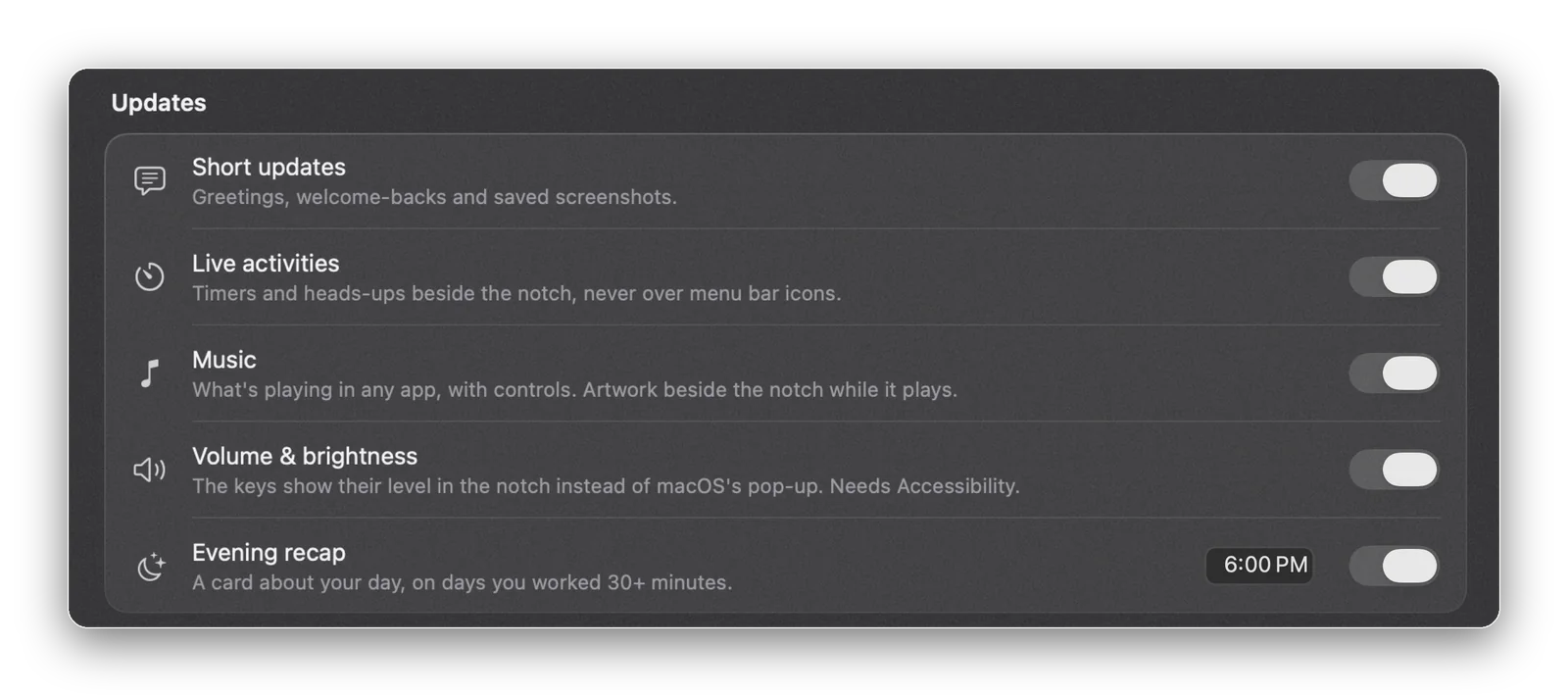
The switch lives in Settings › Notch › Updates, next to music and the evening recap. That one screen decides which small updates the notch shows, so if you love the volume bar but want the notch to stay quiet about music, you can have exactly that.
About the Accessibility permission
Volume and brightness in the notch need the Accessibility permission. It’s the same one that powers hold-to-talk and double-tap ⌘V, and NotchMemo asks for it at first launch; macOS opens System Settings at Accessibility and you switch NotchMemo on. If you skipped it, you can turn it on later in System Settings › Privacy & Security › Accessibility.
It’s fair to ask what a permission with that name allows. NotchMemo doesn’t record your screen or your keystrokes. It only knows whether you’re at the Mac and which app is in front, and everything it keeps stays on your Mac. Our permissions guide explains each permission and how to fix one later.
A small change you’ll notice all day
You press the volume keys dozens of times a day without thinking about it. Moving that little moment to the top of the screen, out of your way, is the kind of change you stop noticing within an hour and miss the moment it’s gone.