Your Mac was fine this morning. Now the fans are up, the cursor stutters and switching apps takes a beat too long. Often the cause is one app, or a helper process behind it, holding on to far more memory than it should. Here’s how to find what’s slowing down your Mac in a few seconds and quit it in one click, without opening Activity Monitor.
Why a Mac slows down
Memory is where your open apps keep what they’re working on. When it fills up, macOS starts moving pieces out to the disk and back, and everything waits on that. You feel it as lag.
The tricky part is that the app using the memory is often not the one you’re looking at. A browser left open with dozens of tabs. A video call that ended an hour ago but is still sitting in the Dock. A helper that belongs to an app you quit, but didn’t go away with it.
The usual way: Activity Monitor
macOS ships with Activity Monitor, in Applications › Utilities. It shows every process on your Mac and its memory, and it’s accurate. It’s also a lot: hundreds of rows with names that make sense to an engineer, and a browser spread across dozens of helper entries. Finding the culprit means knowing what you’re looking at, and you have to leave what you were doing to go and look.
The quicker way: the System tab
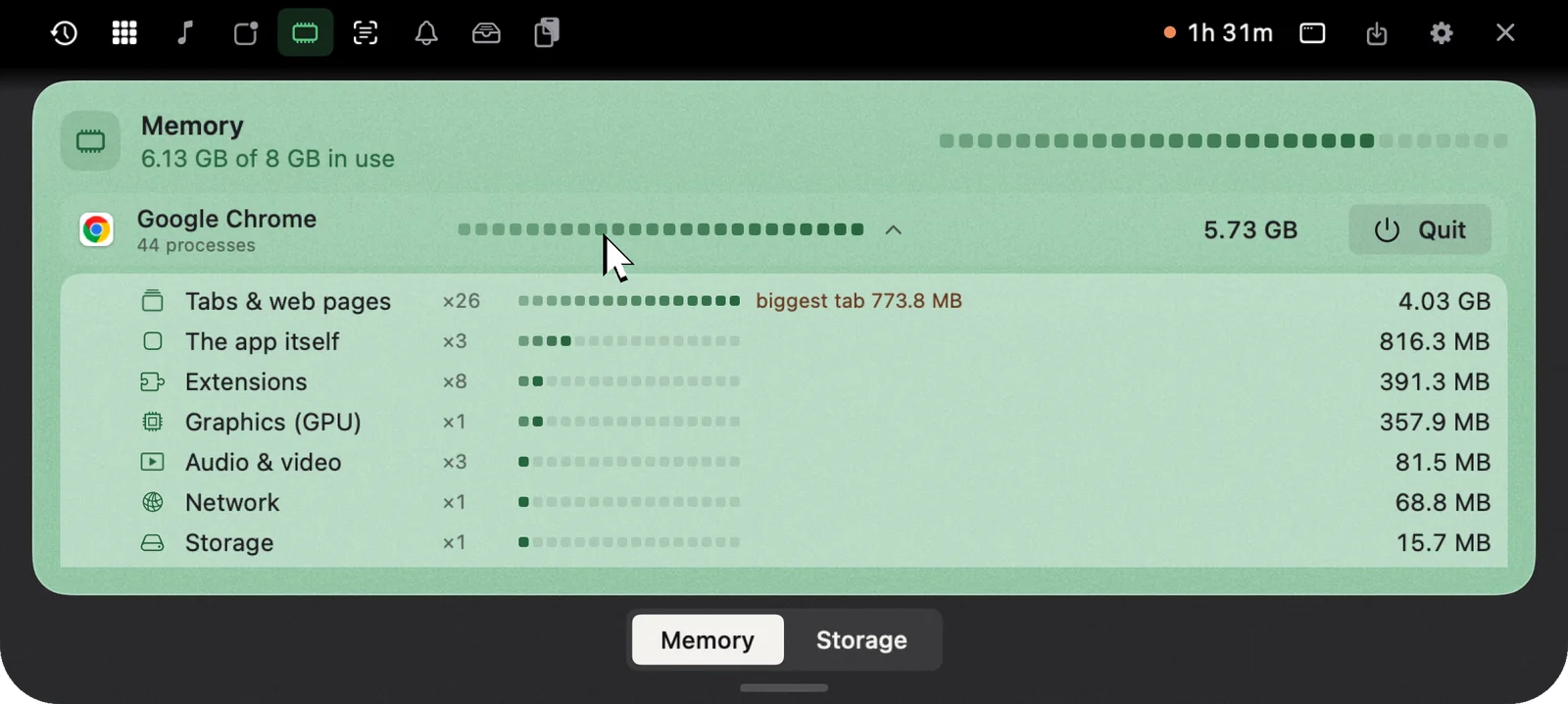
In NotchMemo, click the notch and open the System tab. You see your memory at a glance, and every app with the memory it’s using. The helper processes behind each app are counted with it, so Chrome shows up as Chrome, not as twenty separate rows.
Open an app in the list to see its parts. For Chrome that means tabs, extensions, GPU and network. Found the one that’s out of hand? Quit it in one click. If it’s stuck and won’t go, force quit it from the same place.
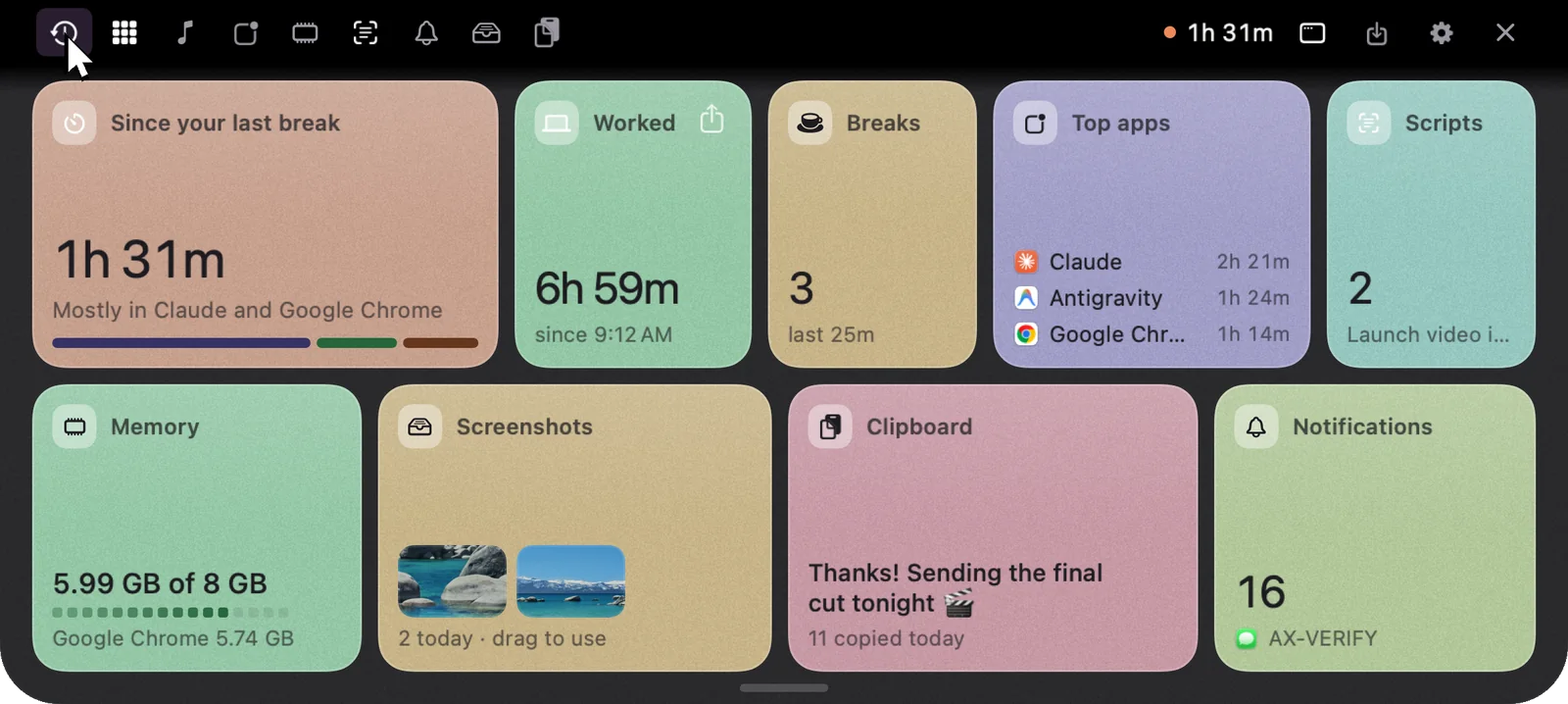
Memory is also one of the cards in your Summary, the view that opens when you click the notch. So you’ll often notice a problem while you’re checking something else, before it slows you down.
What’s filling your disk
The System tab has a second view. Flip the Memory / Storage switch at the bottom and you see what’s taking up space on your disk. NotchMemo scans for this quietly while you’re away from the Mac, so the answer is ready when you look and the scan never competes with your work.
How NotchMemo does it
- Live memory by app. Every app with its memory, including the helper processes behind it, so the numbers add up the way you’d expect.
- Open an app to see its parts. Chrome breaks down into tabs, extensions, GPU and network, so you can see which piece is heavy.
- Quit in one click. Or force quit if it’s stuck. No Dock, no Activity Monitor, no ⌥⌘Esc.
- Storage too. The Memory / Storage switch at the bottom shows what’s filling your disk, scanned while you’re away.
- It doesn’t add to the problem. NotchMemo does very little in the background. Live numbers refresh only while the notch is open.
A habit worth keeping
When your Mac starts to drag, don’t restart it out of habit. Click the notch, look at System, quit the one thing that’s out of hand, and carry on. Esc closes the notch. If you’d rather open it by pointing at it, turn on Open on hover; the shortcuts guide lists that and every other key.